Create an API key in MyLINK MarketingPlatform
Use an API key when another application needs to connect to your MyLINK MarketingPlatform account.
Before you start
You need:
- Access to Integrations & Settings
- A clear reason for the API key
- The person or system that will use the key
- Any approved locations that should be allowed to use the key
Create an API key
Step 1. Open API keys
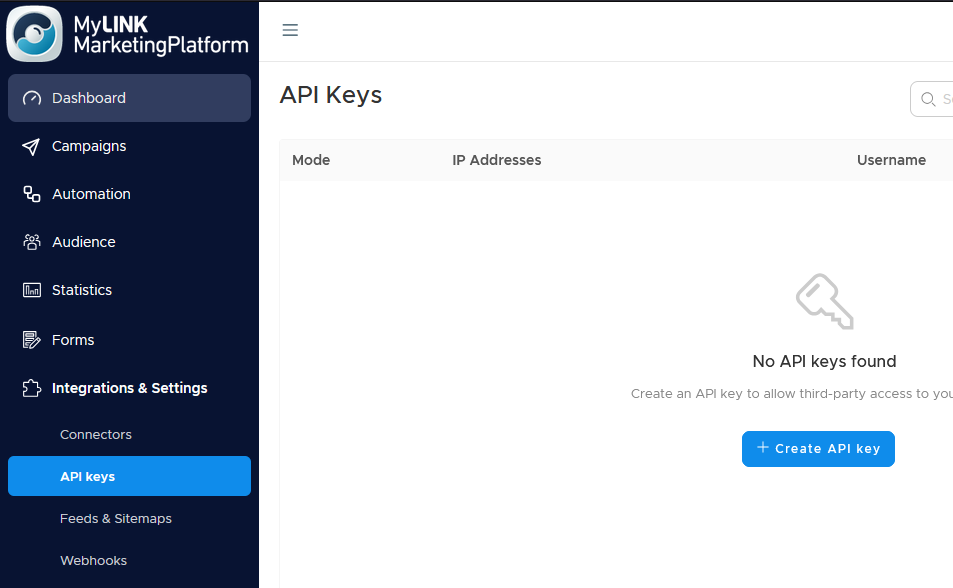
Go to Integrations & Settings and open API keys.
Step 2. Create a new API key
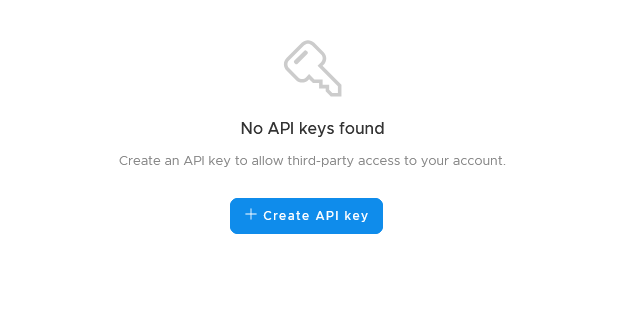
Click + Create API key.
Step 3. Name the API key
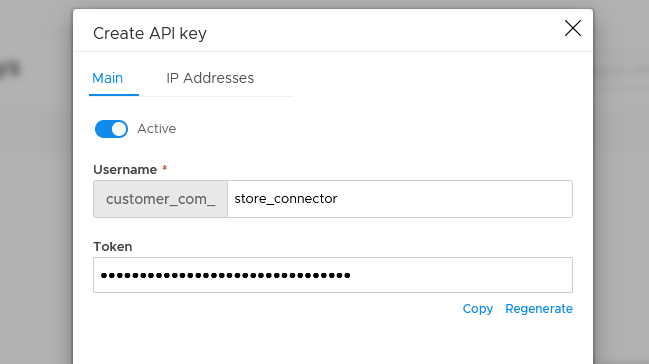
Enter a name that explains what the key is for.
Step 4. Limit approved locations
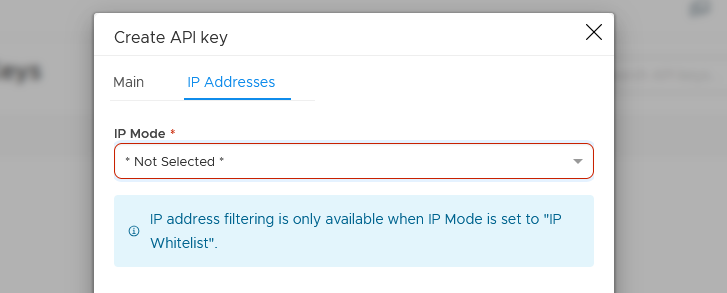
If needed, limit the key so it only works from specific approved locations.
Step 5. Copy the token and activate the API Key
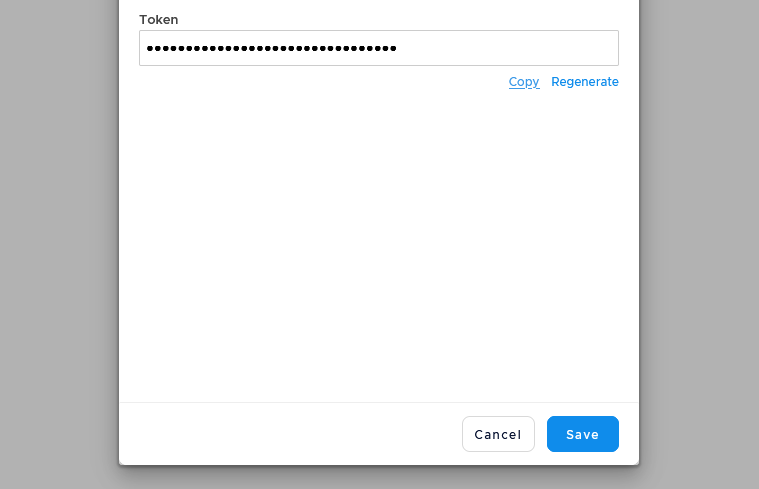
Copy the API token for the person or application setting up the connection. Click on Save to activate the API key.
When to use this feature
Use an API key when a website, internal tool, or external application needs account access.
Common use cases
- Website integrations
Connect a website to the customer account. - Custom data workflows
Give a custom workflow account access. - Internal tools
Connect tools built by your team.
Marketing tip
Use a clear name for each API key. Include the connected system or project so old keys are easier to review later.
Additional information
API keys list
The API keys list shows each key name and whether it is active.
Replace or delete a key
If a key is shared by mistake, regenerate it to replace it or delete it to switch off access.
Location limits
For extra safety, you can limit a key to approved locations.
Things to know
- Treat API keys like passwords.
- Give the key only to the person or system that needs it.
- Regenerating a key replaces it.
- Deleting a key stops access.
Troubleshooting
| Problem | Possible cause | Solution |
|---|---|---|
| A connected system stops working | The key may have been regenerated or deleted | Create or provide the correct active key |
| A key was shared by mistake | The key may no longer be private | Regenerate or delete the key |
| Access fails from one location | Approved location limits may block it | Review the approved locations setting |
| It is unclear what a key is used for | The name may be too vague | Rename or recreate the key with a clear purpose |