Create a webhook in MyLINK MarketingPlatform
Use a webhook to notify another system when an event happens in your MyLINK MarketingPlatform account.
Before you start
You need:
- Access to Integrations & Settings
- The event that should trigger the webhook
- The address the webhook should notify
- Help from the team that manages the receiving system, if needed
Create a webhook
Step 1. Open Webhooks
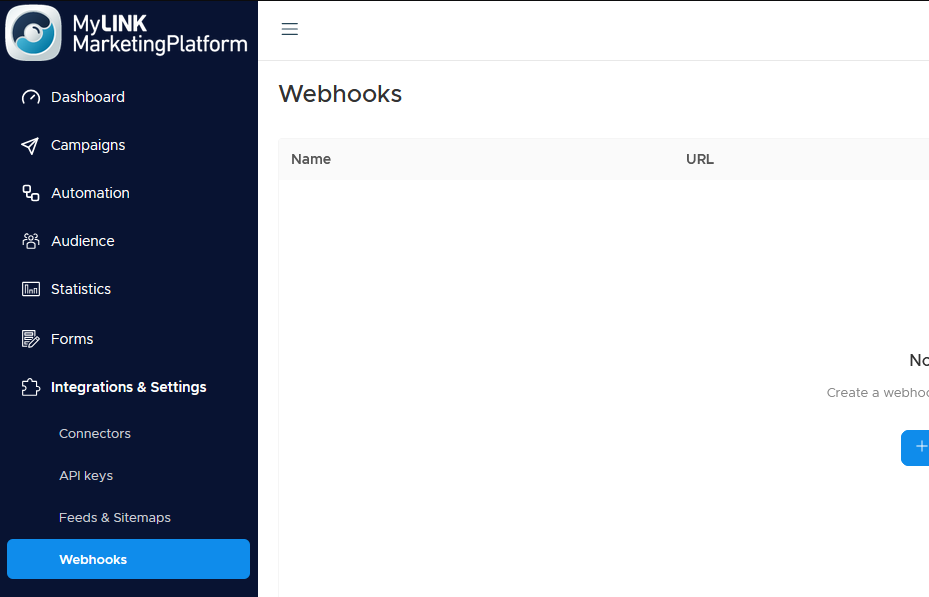
Go to Integrations & Settings and open Webhooks.
Step 2. Create a new webhook
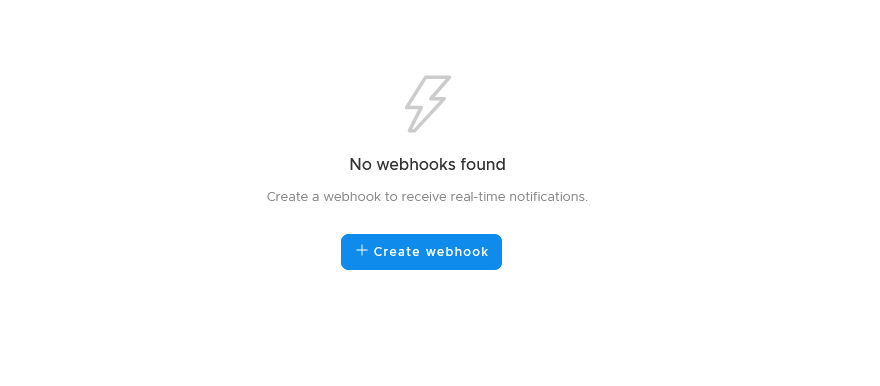
Click + Create new.
Step 3. Name the webhook
Enter a name that explains what the webhook is for.

Step 4. Choose the event
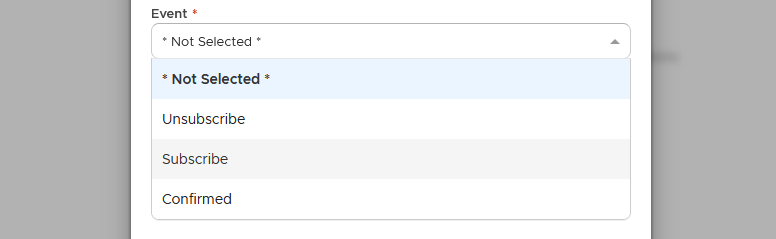
Choose the event that should trigger the webhook: Subscribe, Unsubscribe, or Confirmed.
Step 5. Enter the notification address
Add the address the webhook should notify.

Step 6. Send a test
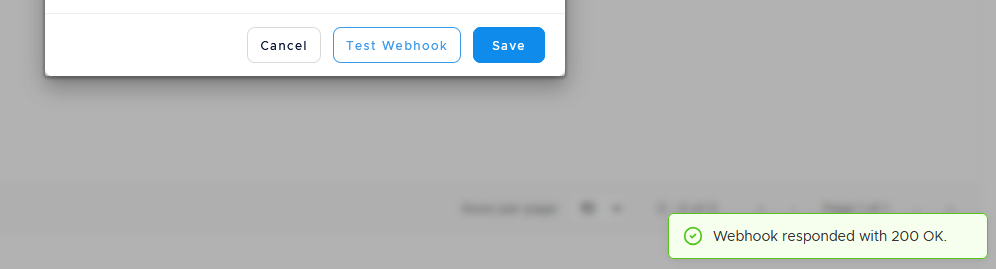
Send a test to confirm the receiving system is connected.
Step 7. Save the webhook
Save the webhook when the test is successful.
When to use this feature
Use webhooks when another system needs to know about MyLINK MarketingPlatform events right away.
Common use cases
- CRM notifications
Notify a CRM about an event. - Internal system updates
Send event details to an internal system. - New profile workflows
Start a workflow when a new profile is added.
Marketing tip
Name the webhook after the event and destination. This makes it easier to review later.
Additional information
Webhooks list
The Webhooks list shows each webhook name, where it sends to, and whether it is active.
Receiving system
Setting up a webhook often involves the person or team that manages the receiving system.
Things to know
- A webhook sends an instant notification.
- A webhook needs an event and a destination address.
- Use the test action before saving.
- Webhooks can be active or inactive.
Troubleshooting
| Problem | Possible cause | Solution |
|---|---|---|
| The test fails | The destination address may be wrong | Review the address with the receiving system owner |
| The other system receives nothing | The webhook may be inactive | Check whether the webhook is active |
| The wrong event sends data | The selected event may be wrong | Review the event setting |
| Setup details are unclear | The receiving system may need a specific format | Ask the receiving system owner to confirm requirements |