Set up web tracking in MyLINK MarketingPlatform
Use web tracking to follow website behavior and build a lead score for profiles in an audience.
Before you start
You need:
- Access to Automation.
- An audience.
- Your website URL.
- Access to add tracking code to your website.
- Product or article feed and sitemap URL.
Set up web tracking
Step 1. Open Web tracking
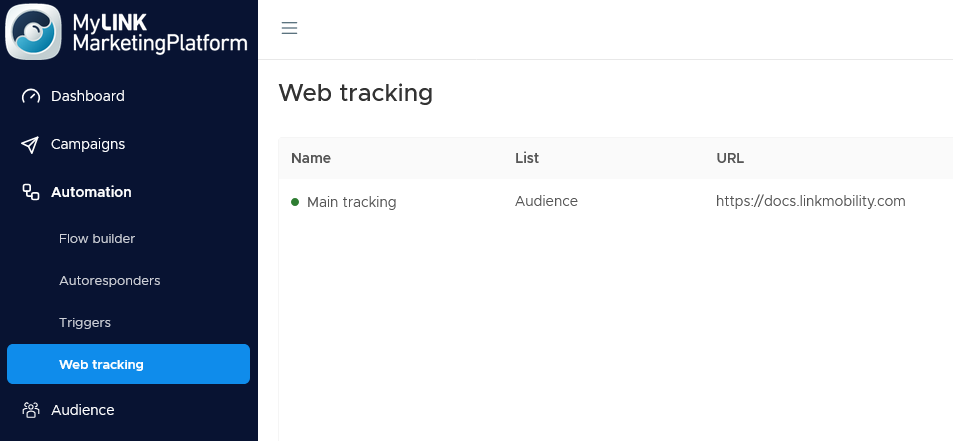
Go to Automation and open Web tracking.
Step 2. Create a new tracking setup
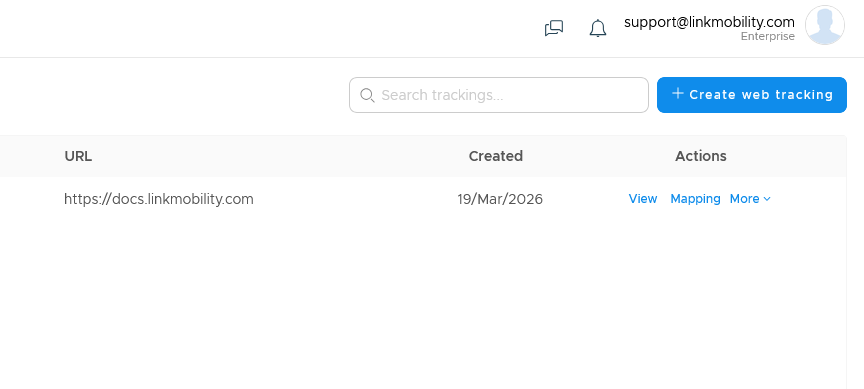
Start a new tracking setup.
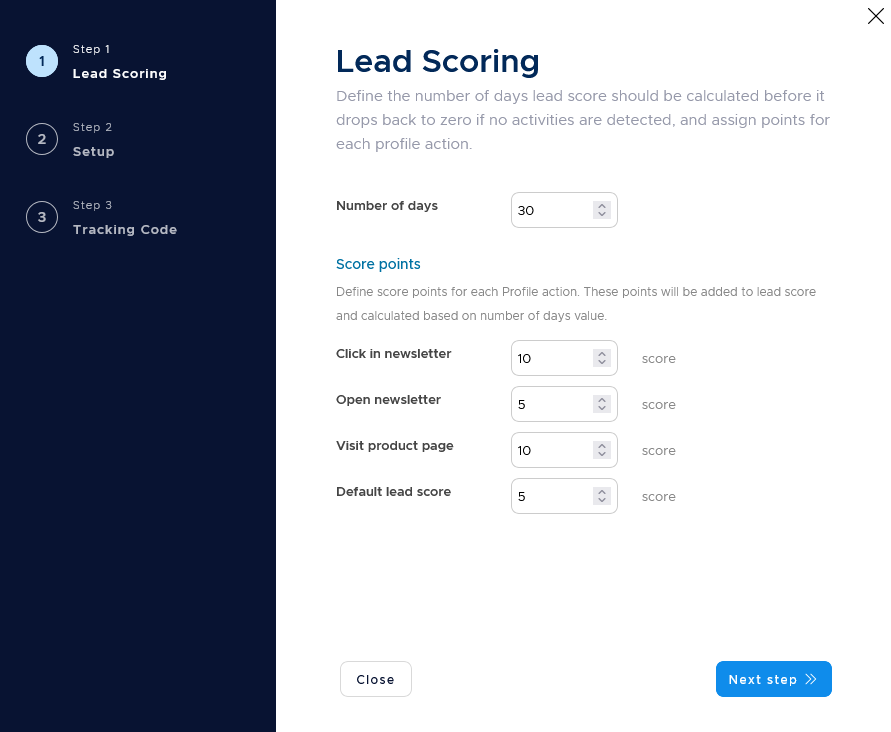
Step 3. Set lead scoring and settings.
Enter the points to award for tracked actions, such as clicking a newsletter link, opening a newsletter, or visiting a product page.
Set the default score and the number of days over which scores decay.
Step 4. Add setup details
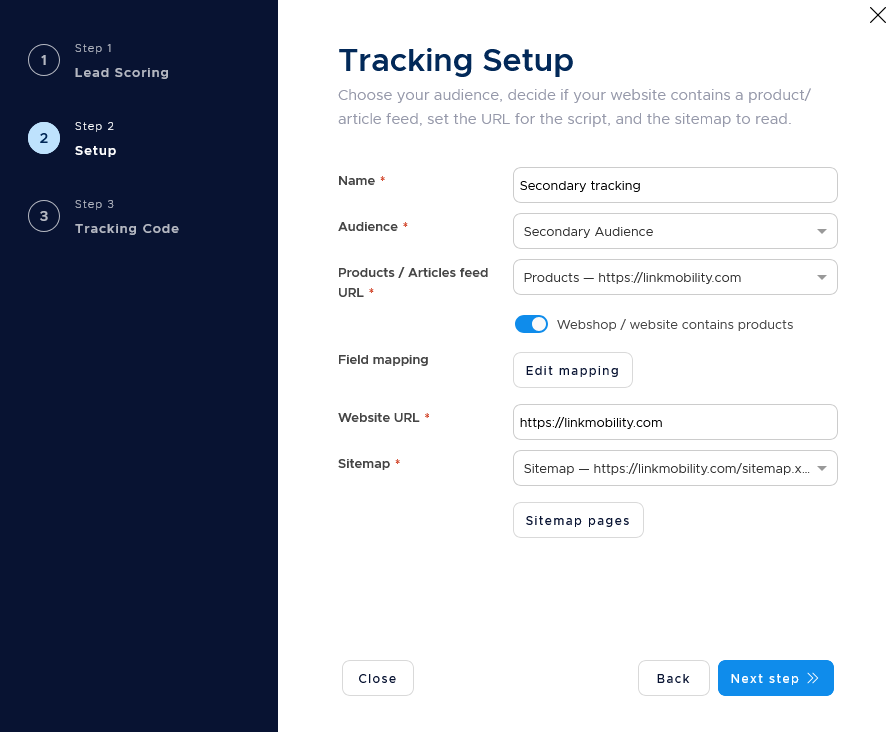
Enter a name, choose the audience, and add your website URL.
Add a product or article feed and a sitemap URL.
Step 5. Test the sitemap
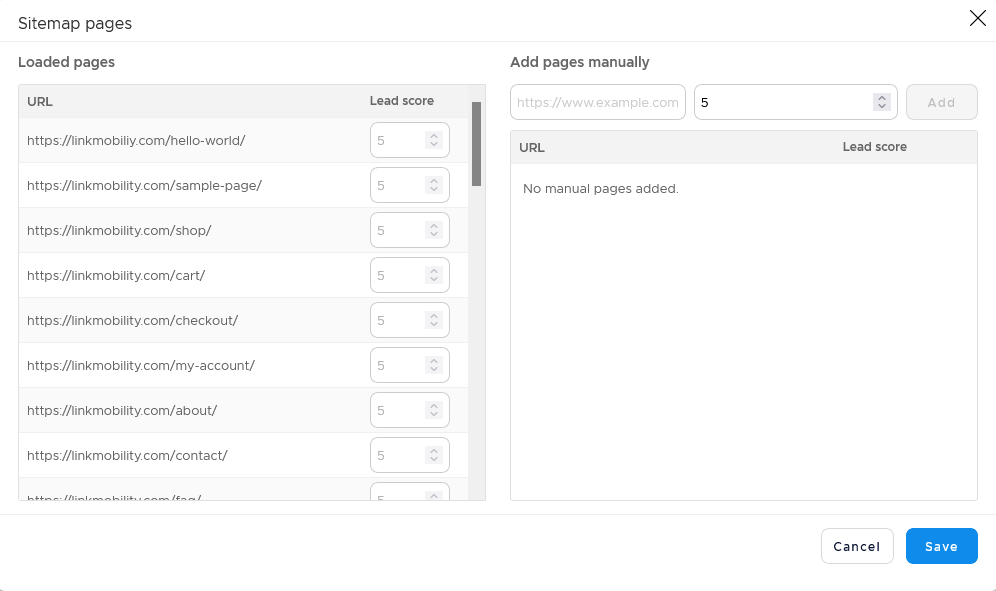
Use Sitemap pages to check that the sitemap is reachable and to see how many pages it found.
Here you can manually add pages if needed.
Step 6. Install the tracking code
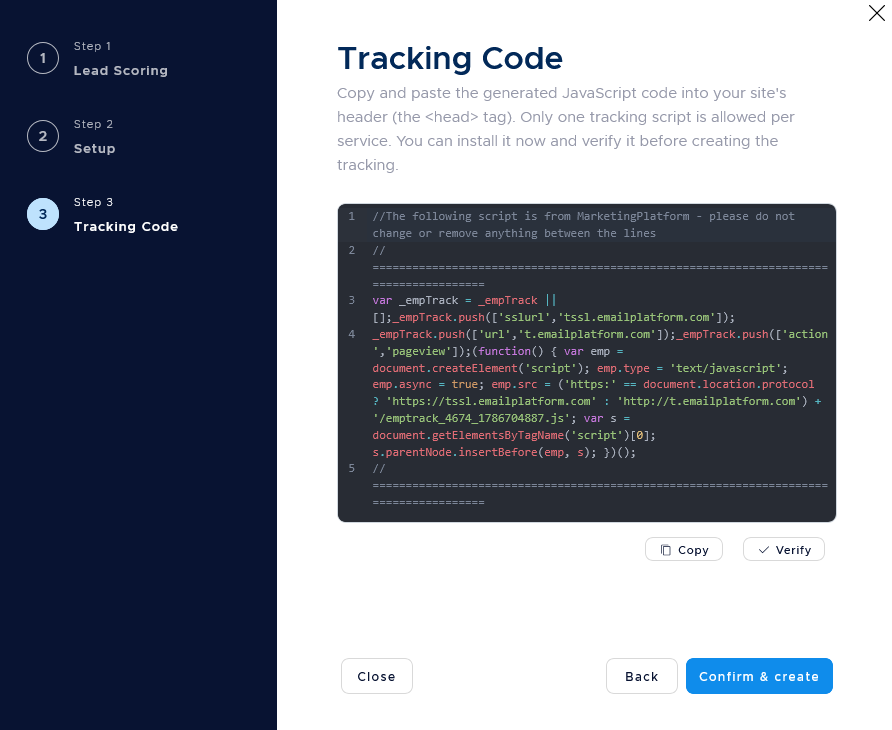
After tracking is created, copy the tracking code tab and install the code on your website.
Step 7. Verify tracking
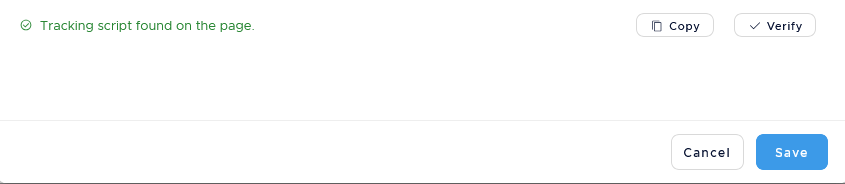
Use Verify to confirm that the tracking code is working.
When to use web tracking
Use web tracking when website behavior should influence marketing follow-up.
Common use cases
- Product interest
Follow up after a profile views a product. - Lead scoring
Score active visitors based on meaningful actions. - Abandoned carts
Start a trigger after a profile abandons a cart.
Marketing tip
Agree on a simple scoring model before setup. Start with a few meaningful actions, then adjust after you review the tracking report.
Additional information
Tracked behavior
Web tracking follows pages, products, categories, items added to cart, and newsletter engagement.
Automation and reporting
The captured behavior can power web-tracking triggers and the Tracking report in Statistics.
Field mapping
A field mapping option can match product-feed details to profile fields.
Things to know
- The tracking list shows each tracking name, status, website URL, and created date.
- You can search, activate, deactivate, or delete tracking setups.
- The tracking code must be installed on your website.
- Verification confirms whether the code is working.
Troubleshooting
| Problem | Possible cause | Solution |
|---|---|---|
| The sitemap test fails | The sitemap may not be reachable | Check the sitemap URL and test again |
| No events appear | The tracking code may not be installed or verified | Install the code and use Verify |
| Product details do not match fields | Field mapping may be missing | Review the field mapping option |
| Triggers do not start from website behavior | Tracking events may not be captured yet | Check tracking setup and the related trigger event |