Create a trigger in MyLINK MarketingPlatform
Use a trigger to run an automatic action when a specific event happens to a profile.
Before you start
You need:
- Access to Automation.
- An audience.
- The email or SMS campaign you want to send, if the trigger sends a message.
- A clear event that should start the trigger.
Create a trigger
Step 1. Open Triggers
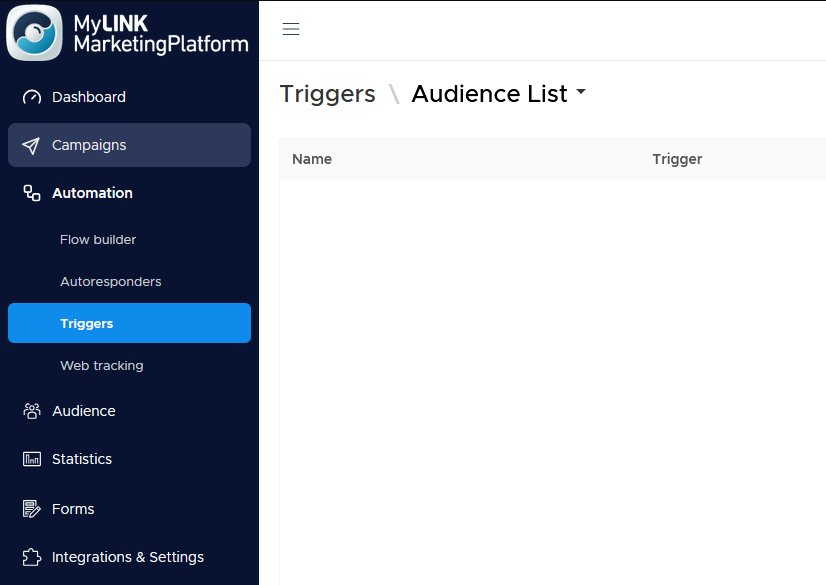
Go to Automation and open Triggers.
Step 2. Create a new trigger
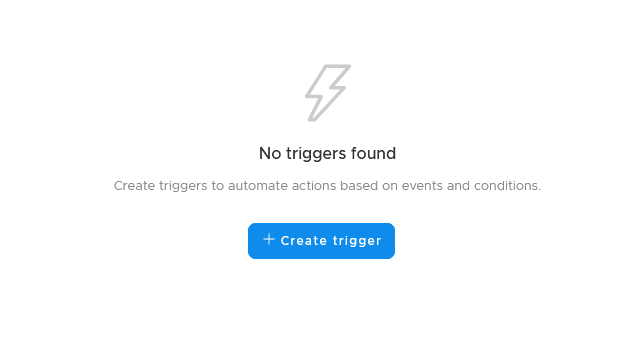
Start a new trigger.
Step 3. Choose what should happen
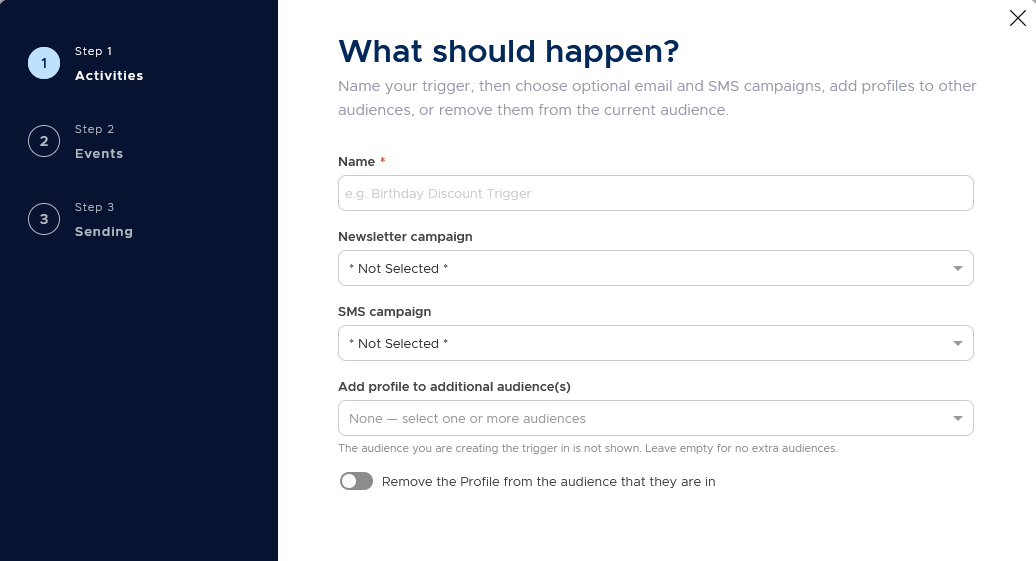
Choose one or more actions. A trigger can send an email campaign, send an SMS campaign, add the profile to one or more other audiences, or remove the profile from the current audience. Name your trigger.
Step 4. Choose when it should happen
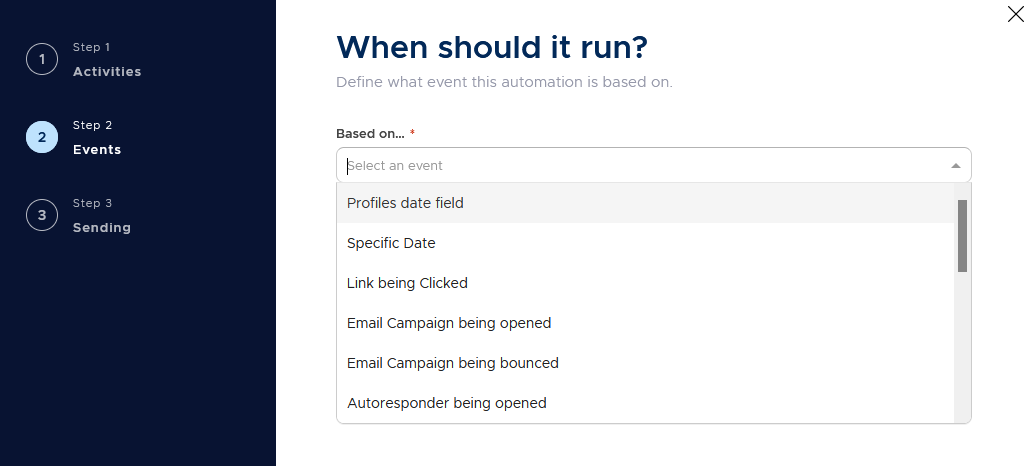
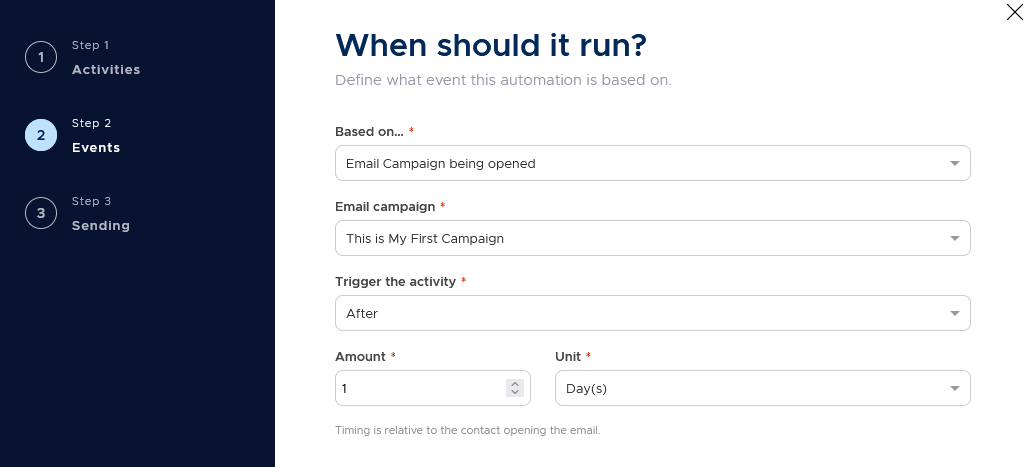
Pick the event that should start the trigger.
Step 5. Set the timing
Choose whether the action should run immediately or a set time after the event.
Step 6. Save the trigger
Review the trigger setup and save it.
When to use this feature
Use triggers for simpler event-based follow-up.
Common use cases
- Date-based messages
Send birthday messages or renewal reminders. - Engagement follow-up
Follow up after a link click or email open. - Website behavior
Start an action based on web tracking.
Marketing tip
Choose events that show clear intent. A link click or abandoned cart usually gives a stronger signal than a general page view.
Additional information
Trigger events
Trigger events can include a date field on the profile, a specific calendar date, a link click, an email open, an email bounce, an autoresponder open or not open, or a web-tracking event.
Web-tracking
Web-tracking events can include visiting a page, viewing a product or category, adding to cart, or abandoning a cart.
Trigger list
The trigger list shows each trigger name, status, type, when it runs, and created date.
Things to know
- Triggers can be active or inactive.
- A trigger can run immediately or after a delay.
- You can search, clone, or delete triggers from the list.
- Date field triggers can run before, on, or after the date, and may repeat on anniversaries.
Troubleshooting
| Problem | Possible cause | Solution |
|---|---|---|
| The trigger does not run | The event may not have happened | Check the selected event and timing. |
| The wrong action runs | The action setup may be incorrect | Review the What should happen section. |
| A date trigger runs at the wrong time | The before, on, or after setting may be wrong | Review the date timing settings. |
| Web-tracking events are missing | Web tracking may not be set up or verified | Review the related web tracking setup. |