Create an autoresponder in MyLINK MarketingPlatform
Use an autoresponder to send an email or SMS automatically when a profile joins an audience.
Before you start
You need:
- Access to Automation.
- An audience.
- An email or SMS campaign to send.
- Sender details if the autoresponder sends email.
Create an autoresponder
Step 1. Open Autoresponders
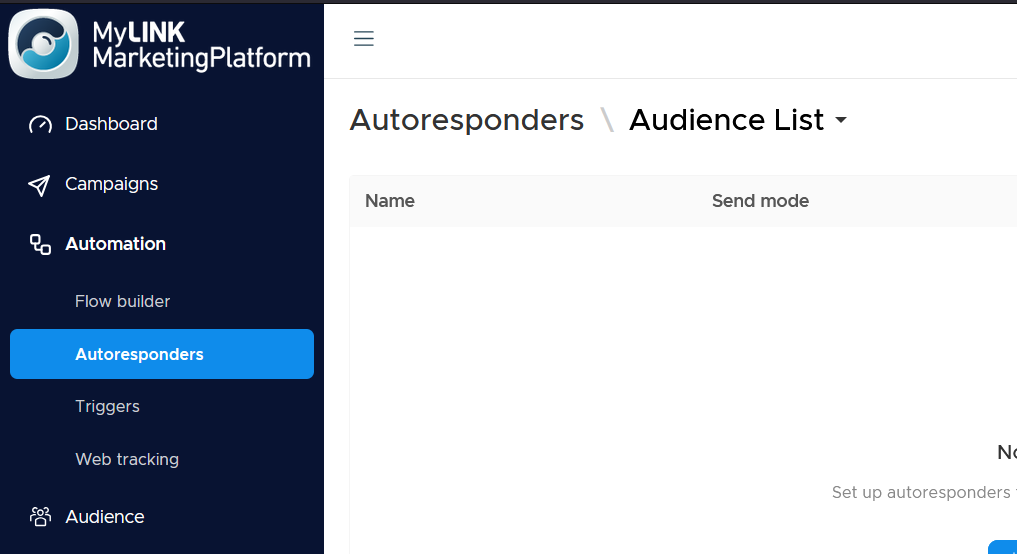
Go to Automation and open Autoresponders.
Step 2. Choose audience
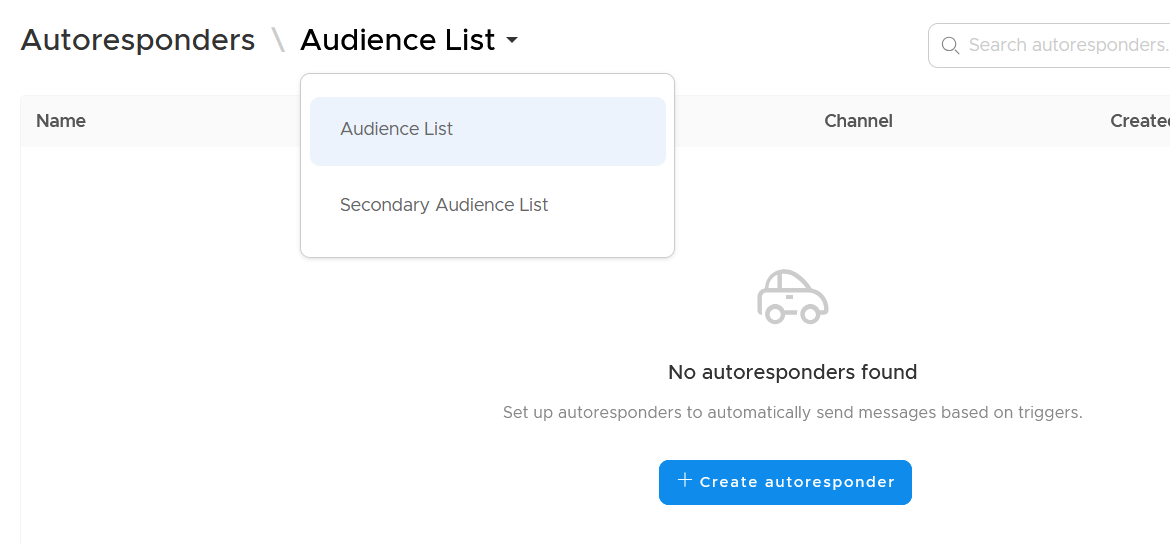
Choose which audience you wish to create the autoresponder for.
Step 3. Create a new Autoresponder
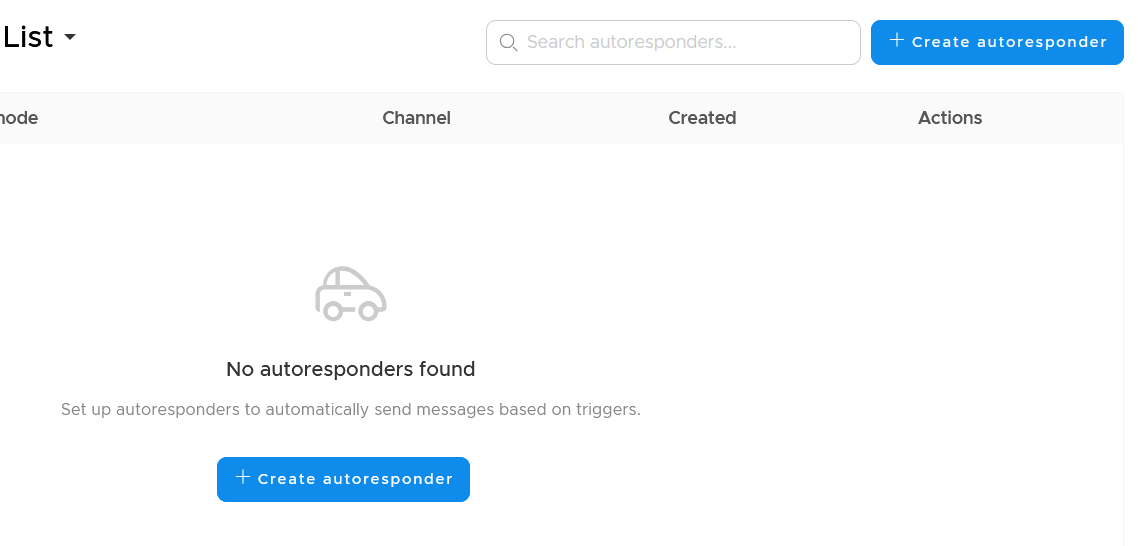
Click the + Create autoresponder to create a new Autoresponder
Step 4. Name and choose the content
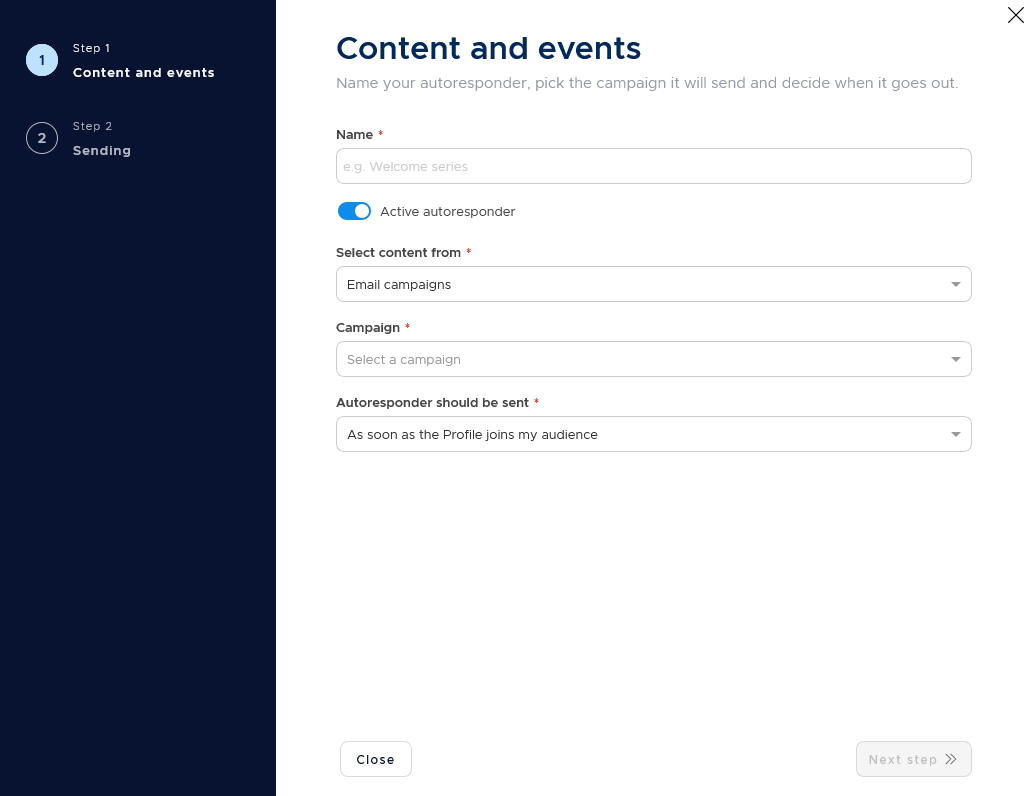
Name your autoresponder, and select an existing email or SMS campaign the autoresponder should send.
Step 5. Choose when to send
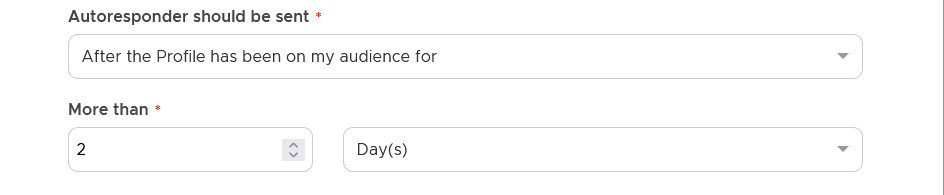
Choose whether to send as soon as the profile joins the audience or after a set number of hours, days, weeks, months, or years.
Step 6. Add email details, tracking and limits.
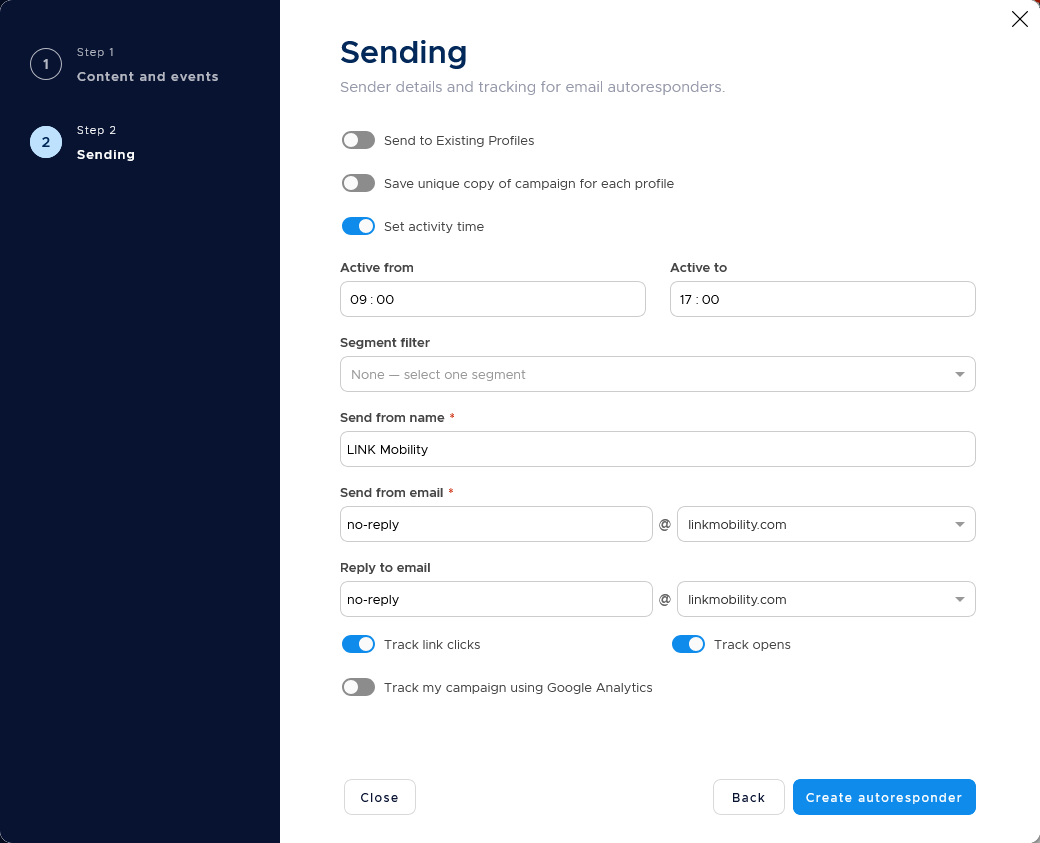
For email autoresponders, set the send-from name, send-from address, and optional reply-to address. Choose whether to track link clicks, opens, and Google Analytics. You can also restrict sending to a specific segment or time window.
Step 8. Save the autoresponder
Save the autoresponder by clicking Create autoresponder when the setup is complete.
When to use this feature
Use an autoresponder when the same message should be sent after a profile joins an audience.
Common use cases
- Welcome messages
Send a message after a profile joins an audience. - Confirmation follow-ups
Follow up after a profile completes an action. - First-purchase education
Send useful information after a first purchase.
Marketing tip
Keep the first autoresponder focused on one outcome. For example, ask new subscribers to confirm their preferences or read one useful getting-started message.
Additional information
Autoresponder list
The autoresponder list shows each autoresponder name, status, send mode, channel, and created date.
List actions
You can search, sort, clone, or delete autoresponders from the list.
Email tracking
Email autoresponders can include tracking for link clicks, opens, and Google Analytics.
Things to know
- An autoresponder sends an existing email or SMS campaign.
- Autoresponders can be active or inactive.
- A segment can limit who receives an email autoresponder.
- A time window can limit when an email autoresponder sends.
Troubleshooting
| Problem | Possible cause | Solution |
|---|---|---|
| The autoresponder does not send | It may be inactive | Open the autoresponder and check the active setting. |
| The wrong profiles receive it | The audience or segment may be wrong | Review the selected audience and segment limit. |
| Email results are missing | Tracking may be off | Check the link click, open, and Google Analytics tracking settings. |
| The send time is not expected | The delay setting may be different from the plan | Review the timing step in the wizard. |