Create a form in MyLINK MarketingPlatform
Use Forms to collect profiles, manage preferences, support unsubscribe pages, or confirm subscriptions.
Before you start
You need:
- Access to Forms
- An audience
- The profile fields you want to collect
- Any brand or styling requirements for the form
Create a form
Step 1. Open Forms
Go to Forms for the selected audience.
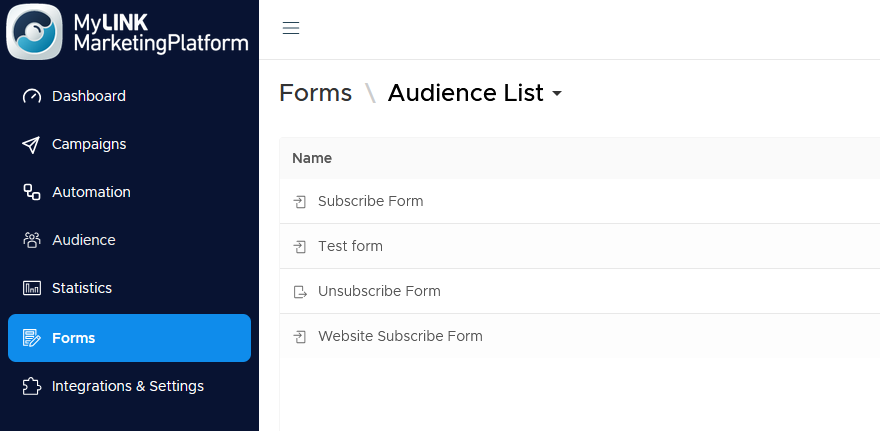
Step 2. Create a new form
Click Create new form.
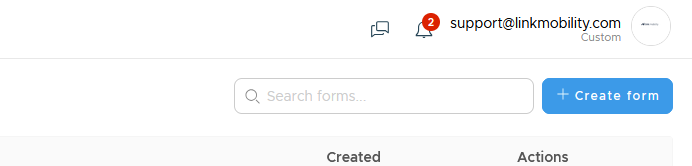
Step 3. Choose the form type
Choose the type of form you need: Subscription, Unsubscribe Flow, Modify Details or Confirmation. Name the form.
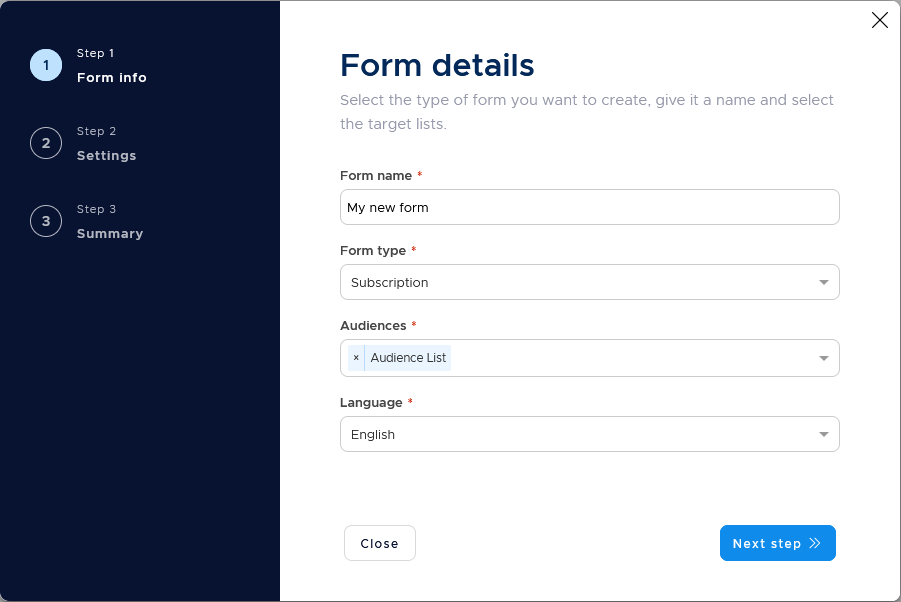
Step 4. Add fields
Add the profile fields you want to collect or show on the form.
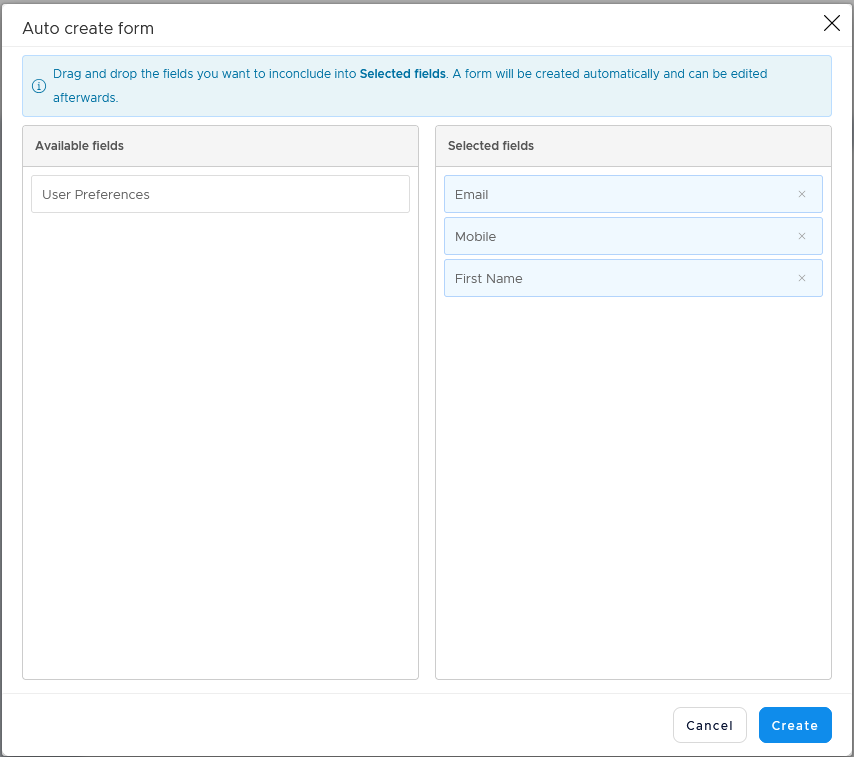
Step 5. Design the form
Style the form to match your brand. You can place pictures, insert text, links and buttons - and of course edit the HTML directly if needed.
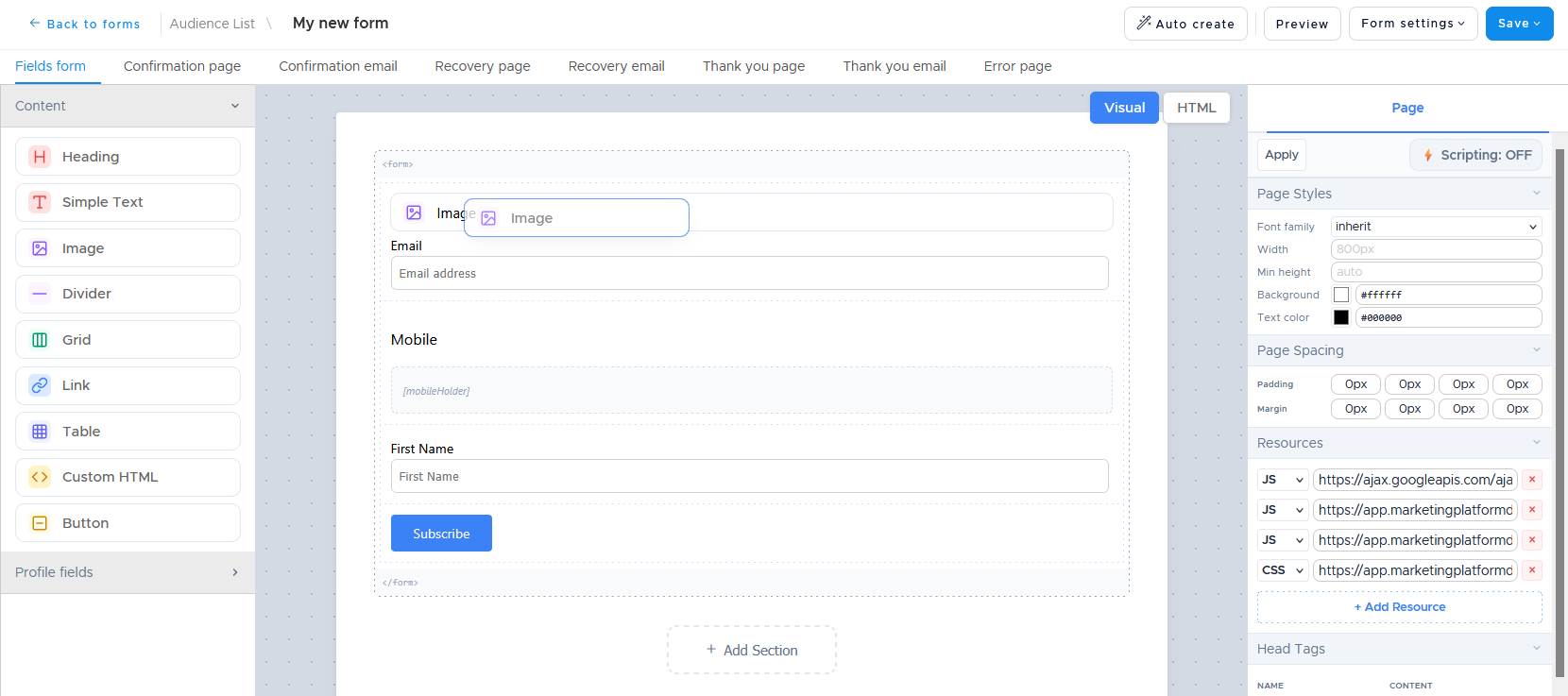
Step 6. Repeat for confirmation pages
Repeat the styling for any additional pages as needed, such as the confirmation page or the confirmation email.
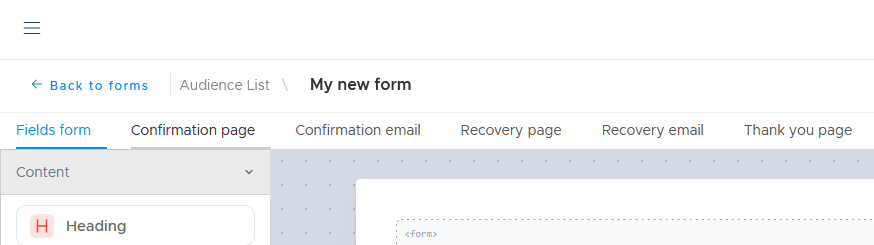
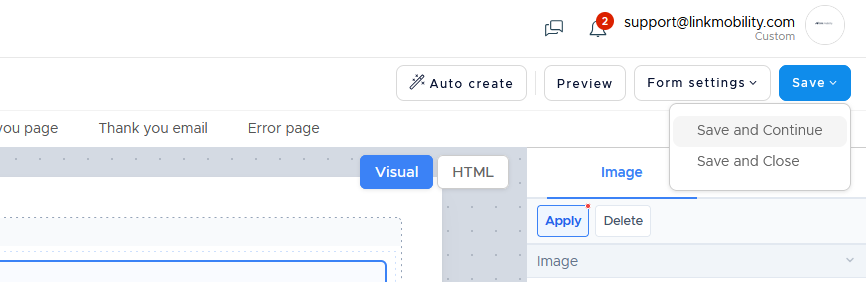
Step 7. Save the form
Save the form when the setup and design are complete.
Step 8. Publish form on your website
Publish the form on your website by copying the source code from the form builder.
When to use this feature
Use forms when profiles need to enter or update information themselves.
Common use cases
- Newsletter signup
Collect new newsletter profiles. - Preference management
Create unsubscribe pages or preference centers. - Double opt-in
Create a double opt-in confirmation form.
Marketing tip
Collect only the fields you plan to use. Shorter forms often reduce friction and make profile data easier to maintain.
Additional information
Form submissions
Submitted forms feed into the audience you chose.
Forms list
The Forms list shows each form name, type, and created date.
You can search by name and page through the list.
Form actions
You can edit or delete a form from the list.
Things to know
- Subscription forms add new profiles to an audience.
- Unsubscribe forms let a person opt out.
- Modify or Preference centre forms let a person update details or preferences.
- Confirmation forms support double opt-in.
Troubleshooting
| Problem | Possible cause | Solution |
|---|---|---|
| The form list is empty | No forms have been created yet | Click Create new form |
| A field is missing | The profile field may not exist yet | Create or review the profile field before adding it to the form |
| Profiles go to the wrong audience | The wrong audience may be selected | Check the selected audience before publishing |
| The form type does not fit the task | The wrong form type may be selected | Review the form type and create the right form |