Create a segment in MyLINK MarketingPlatform
Create a segment to group profiles by rules, such as profile data or campaign activity.
Before you start
You need:
- An audience
- Profiles in the audience
- Profile fields or activity data for your rules
Create a segment
Step 1. Open Segments
Open Audience > Segments.
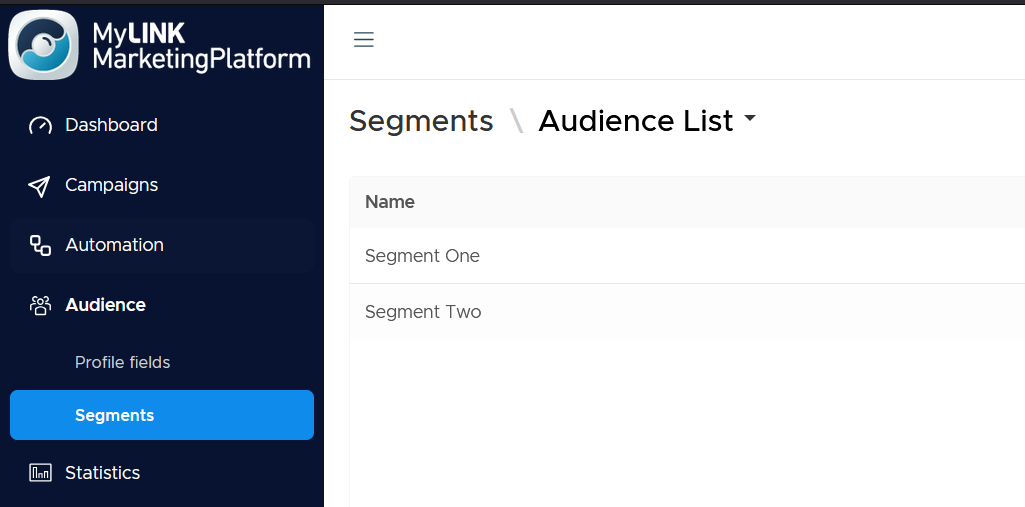
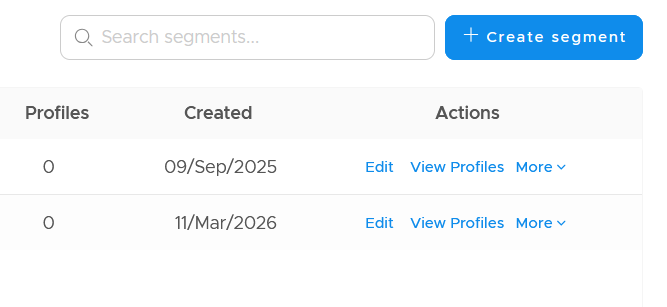
Step 2. Create or open a segment
Create a new segment or edit an existing segment.
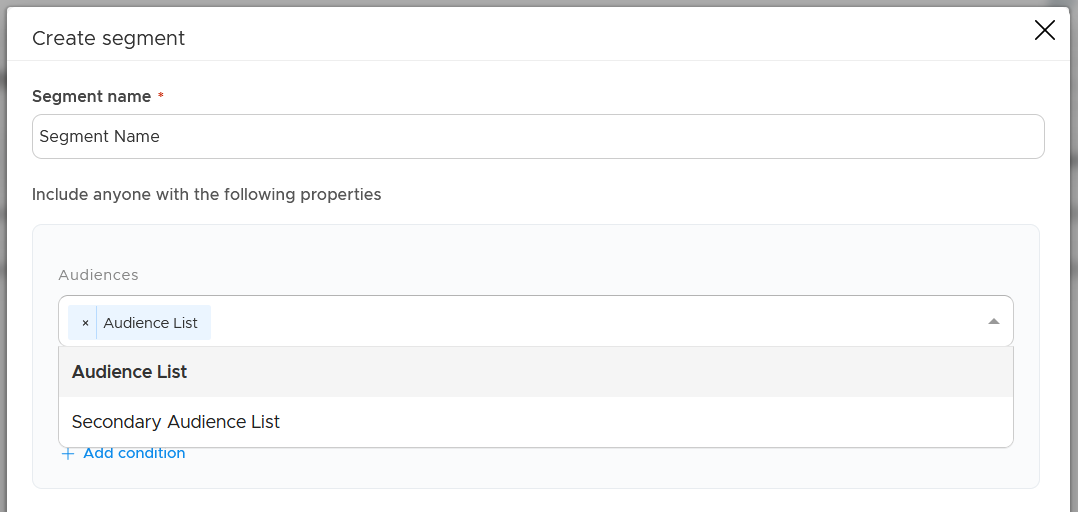
Step 3. Choose the audience
Choose the audience the segment draws from.
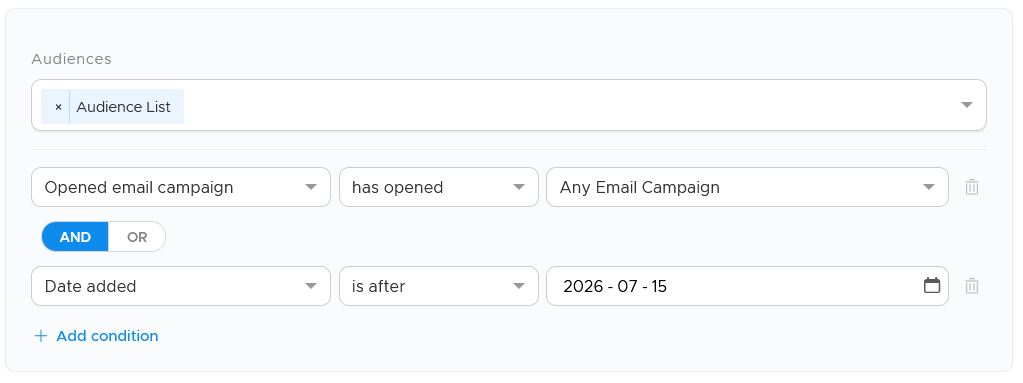
Step 4. Add conditions
Add conditions with a field, an operator, and a value.
Combine conditions with AND and OR.
When to use this feature
Use a segment when you want to target profiles that match specific rules.
Common use cases
- Target by country
Create a segment for profiles in one country when a campaign is market specific. - Target by campaign activity
Create a segment for profiles who opened a campaign in the last 30 days. - Start with a simple first campaign
Use one or two clear rules for your first campaign.
Marketing tip
Keep the first segment simple.
Check the rules before using the segment in a live campaign.
Additional information
Segment rules
A segment is a group defined by rules.
Updating membership
A segment keeps itself up to date as profiles come and go.
Groups
You can add groups or exclude groups when your targeting needs to be more specific.
Things to know
- Conditions use a field, an operator, and a value.
- AND and OR combine conditions.
- A segment can be used when choosing campaign recipients.
Troubleshooting
| Problem | Possible cause | Solution |
|---|---|---|
| The segment is too broad | The rules include too many profiles | Add another condition or exclude a group |
| The segment is too narrow | The rules exclude too many profiles | Review the operators and values |
| A profile is missing | The profile may not match the current rules | Check the profile fields and rule values |