Create and design an email campaign in MyLINK MarketingPlatform
Create an email campaign, choose its recipients, and build the message in the drag and drop email builder.
Before you start
You need:
- An audience or a segment
- A campaign goal
- Message copy and content assets
- Email sender details
- A blank design, template, or previous campaign to use as a starting point
Create and design an email campaign
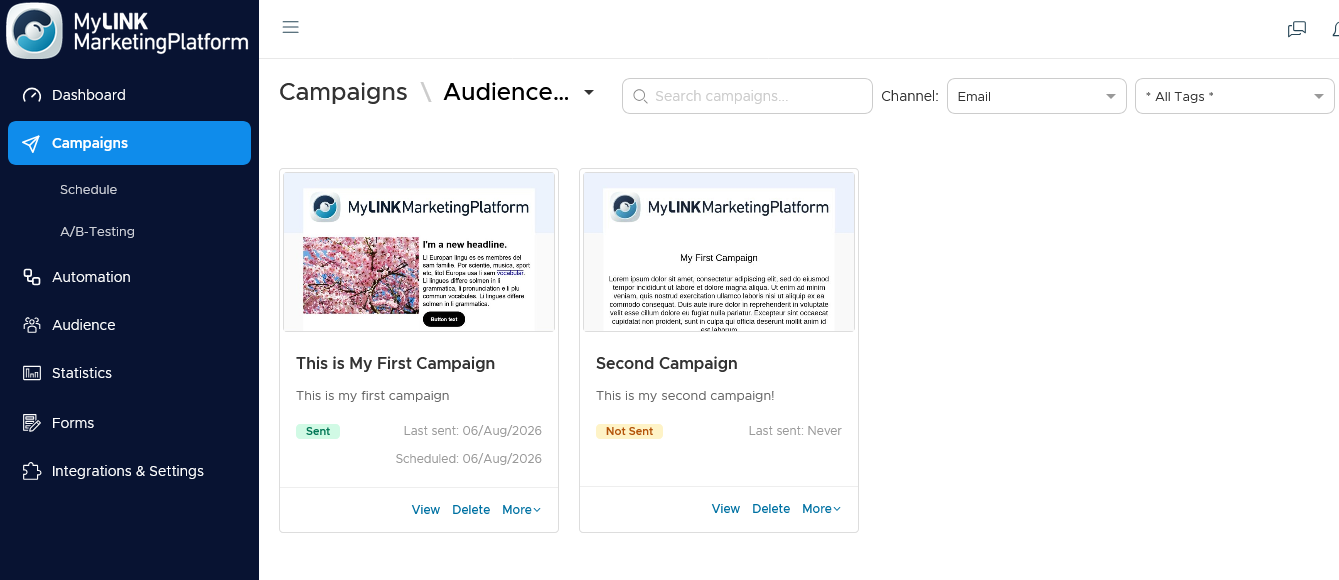
Step 1. Open Campaigns
Open Campaigns.
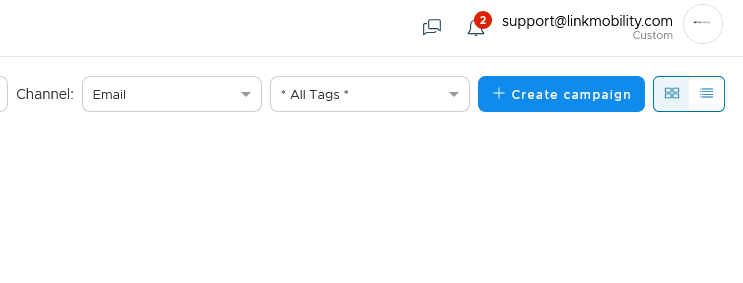
Step 2. Create a campaign
Select + Create campaign.
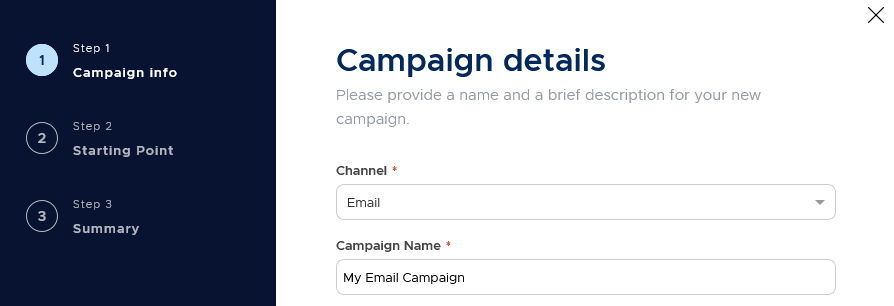
Step 3. Add the campaign details
Choose Email as the channel.
Enter a campaign name.
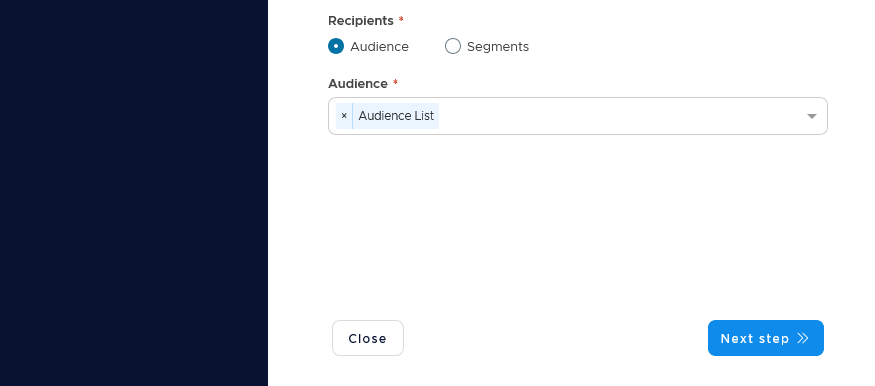
Step 4. Choose recipients
Choose whether the campaign should use an audience or a segment.
Select the audience or a segment that should receive the campaign.
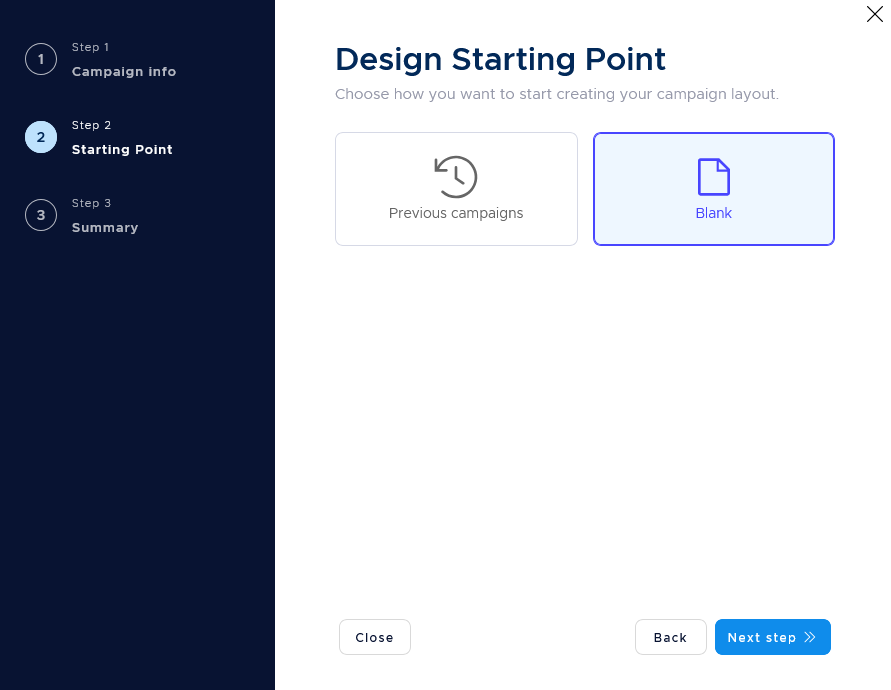
Step 5. Choose a starting point
Start from a blank design or a previous campaign.
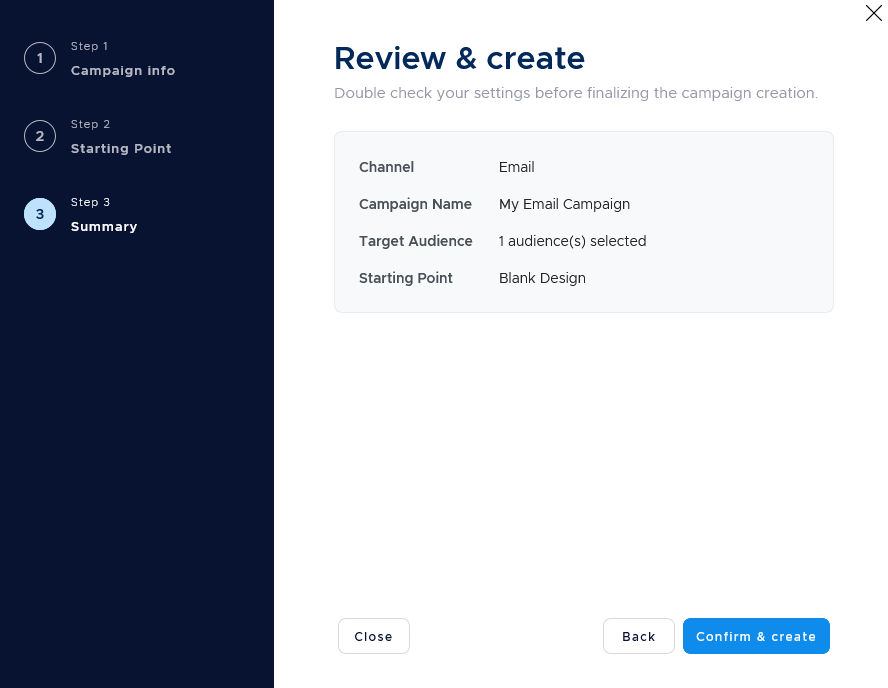
Step 6. Review and create the campaign
Review the campaign setup.
Confirm and create the campaign to open it in the email builder.
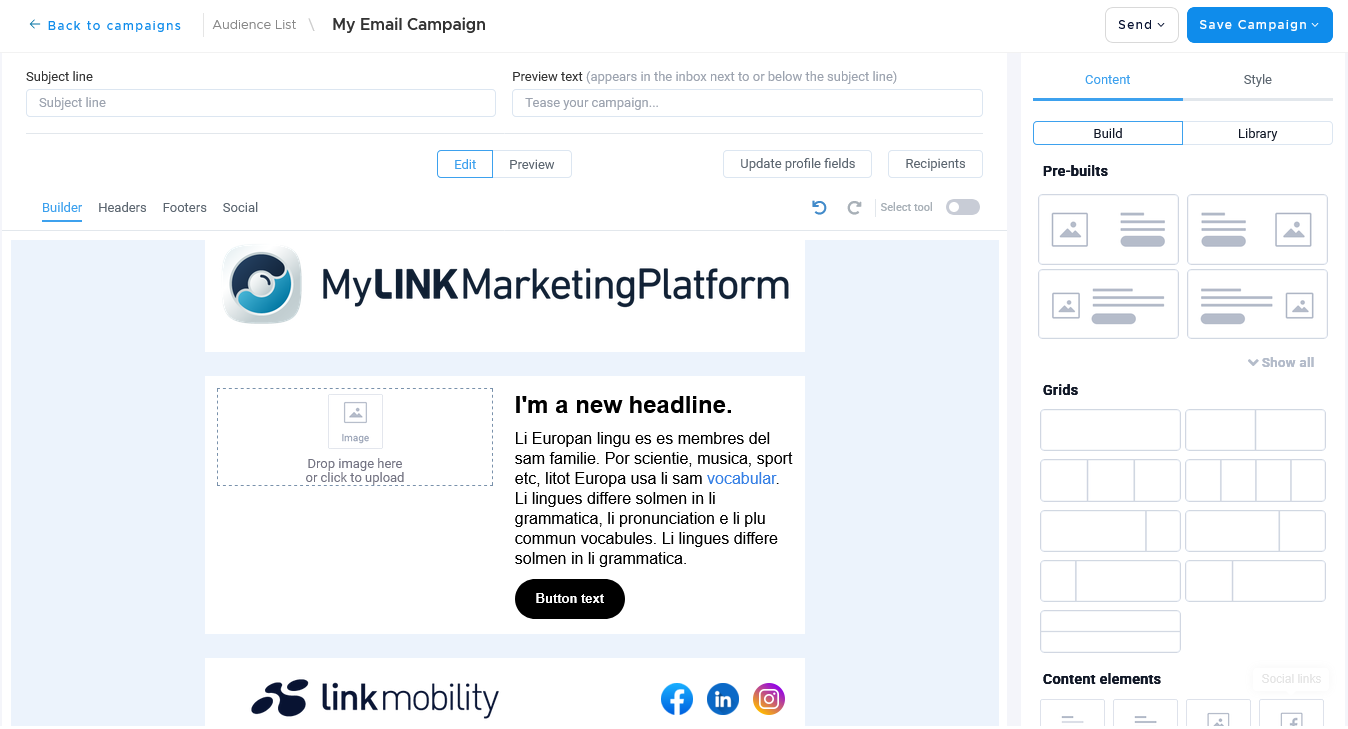
Step 7. Build the email
Use the drag and drop builder to add content blocks such as text, images, buttons, and dividers.
You can also use prebuilt blocks.
Arrange the content blocks in rows and columns.
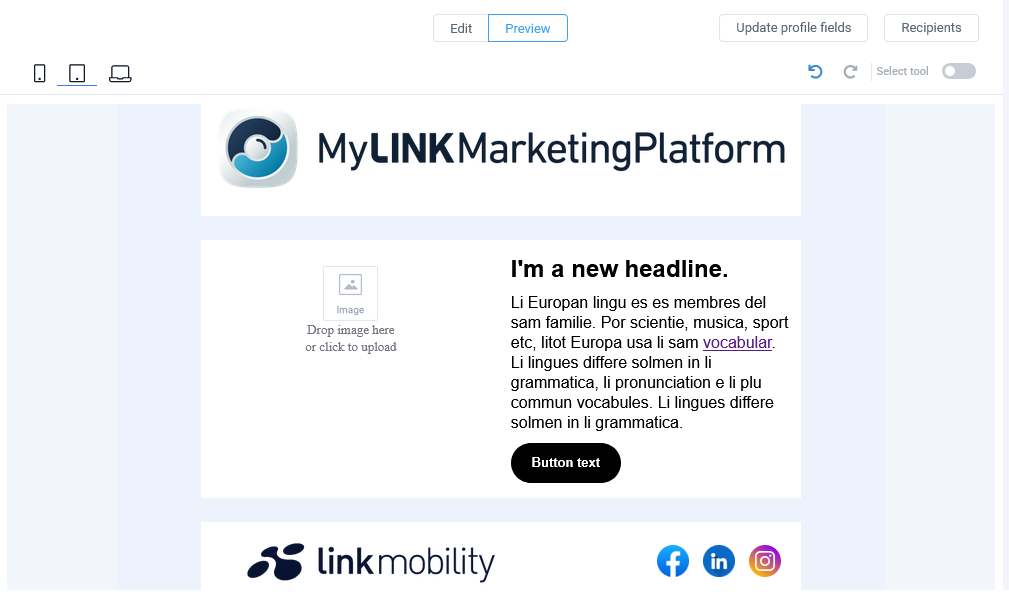
Step 8. Review the design
Use Preview to check the email layout.
Step 9. Save the campaign
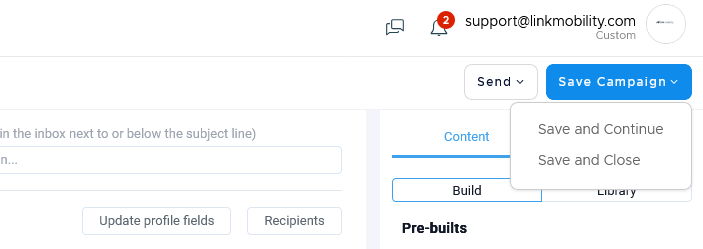
Select Save Campaign to save your work.
When to use this feature
Create an email campaign after the audience, profile fields, and segments are ready.
Common use cases
- Newsletters
Combine text, images, buttons, and dividers in a clear newsletter layout. - Campaigns based on previous work
Use a previous campaign as the starting point when it already has a suitable design.
Marketing tip
Give the campaign a clear name that your team can recognize later in Campaigns and Statistics.
Design the message for the audience or a segment you selected.
Additional information
Email starting points
An email campaign can start from a blank design or a previous campaign.
Email builder
The email builder uses content blocks arranged in rows and columns.
Available content can include text, images, buttons, dividers, and prebuilt blocks.
Sender details
Have the email sender details ready before the first live send.
Check that the from address matches your organization setup.
Campaign editor
The campaign opens in the email builder after creation.
Things to know
- An email campaign can use an audience or a segment.
- Previous campaigns can provide a starting point.
- Preview the layout before you continue to testing and sending.
- Save the campaign as you work.
Troubleshooting
| Problem | Possible cause | Solution |
|---|---|---|
| You are not ready to choose recipients | The audience or a segment are not ready | Finish the recipient setup before creating the campaign |
| You cannot choose a starting point | A template or previous campaign may not be available | Start from a blank design |
| The email layout is not ready | Content blocks may need review | Rearrange the blocks and use Preview |
| The sender details need review | The from address may not match your organization setup | Confirm the email sender details before sending |