Create and design an SMS campaign in MyLINK MarketingPlatform
Create an SMS campaign, choose its recipients, and write the message in the SMS editor with a live phone preview.
Before you start
You need:
- An audience or segment
- A campaign goal
- SMS message copy
- An appropriate SMS sender name
Create and write an SMS campaign
Step 1. Open campaign
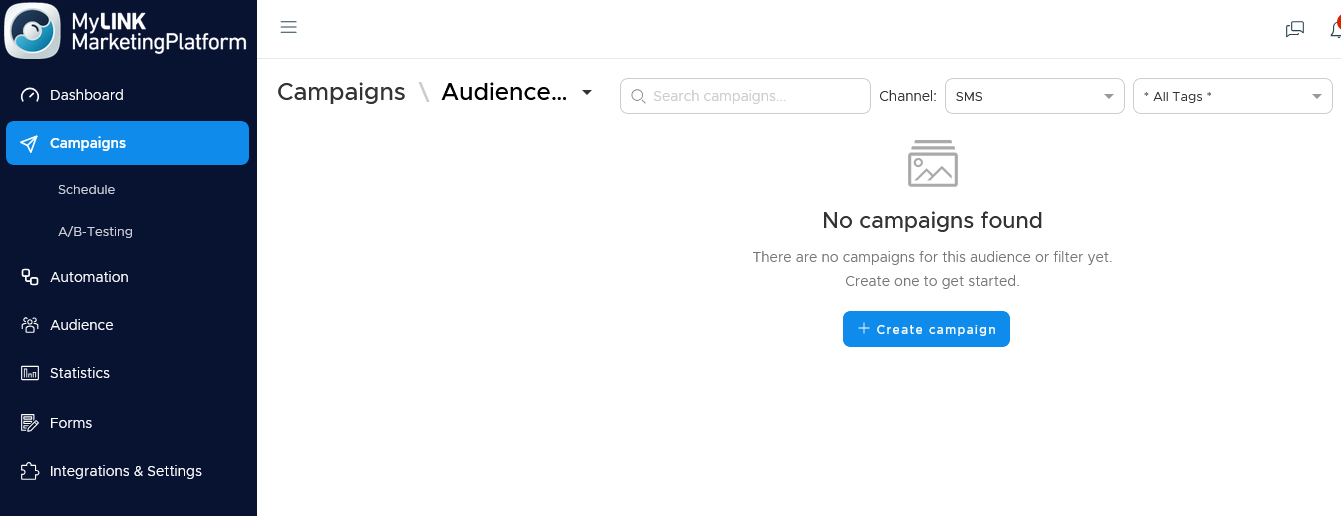
Open Campaigns from the left menu.
Step 2. Create a campaign
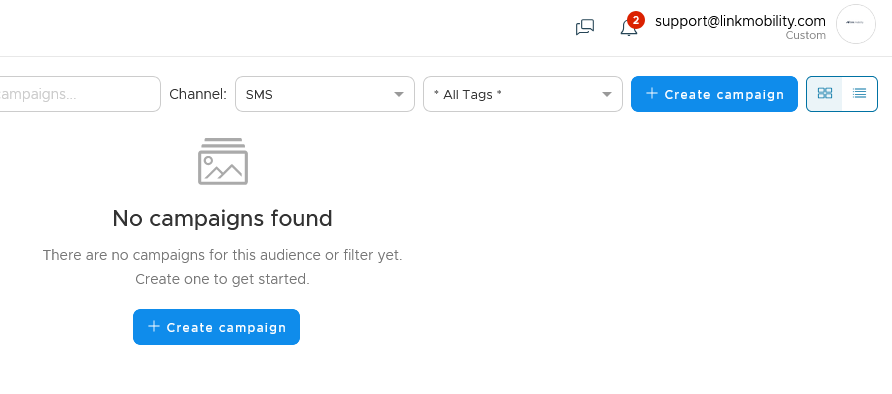
Select + Create campaign.
Step 3. Add the campaign details
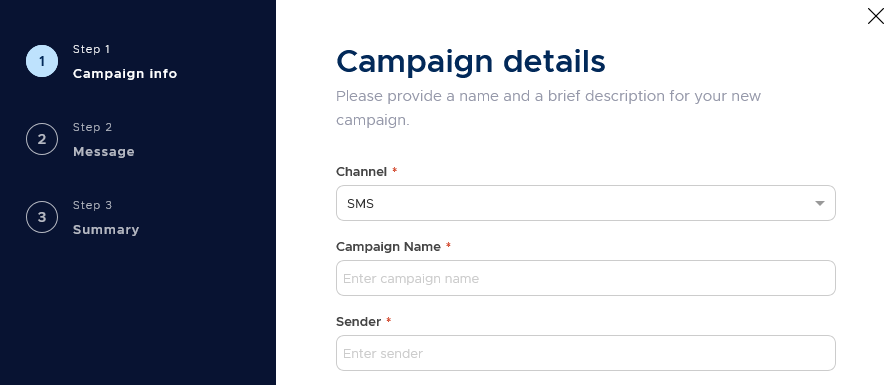
Choose SMS as the channel.
Enter a campaign name and select an appropriate sender name.
Step 4. Choose the recipients
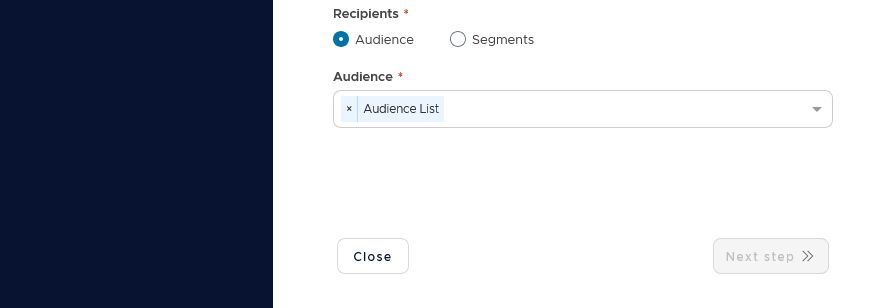
Choose whether the campaign should use an audience or a segment.
Select the audience or segments that should receive the campaign.
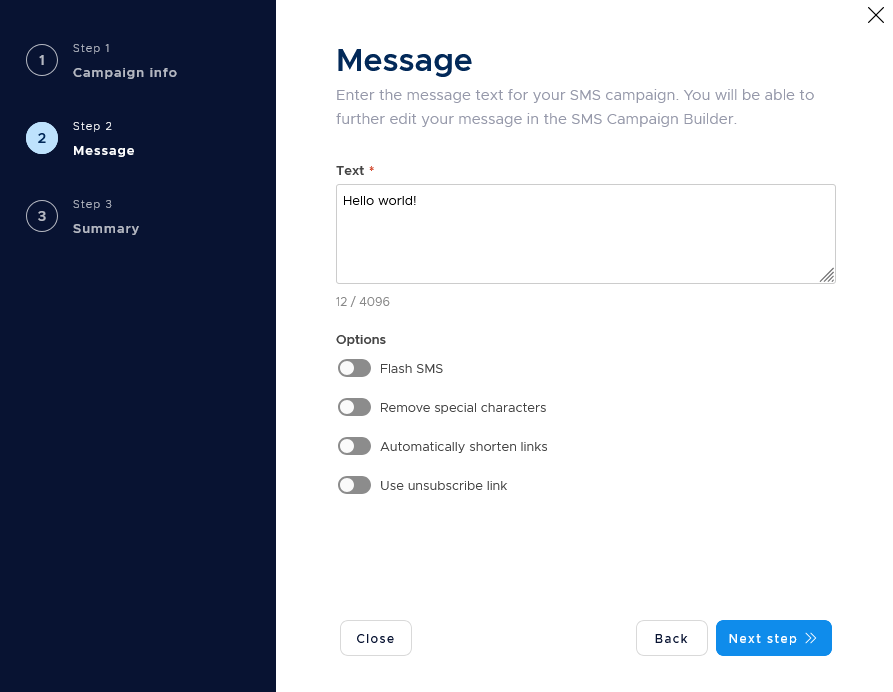
Step 5. Add the SMS message
Enter the SMS message text as the campaign starting point.
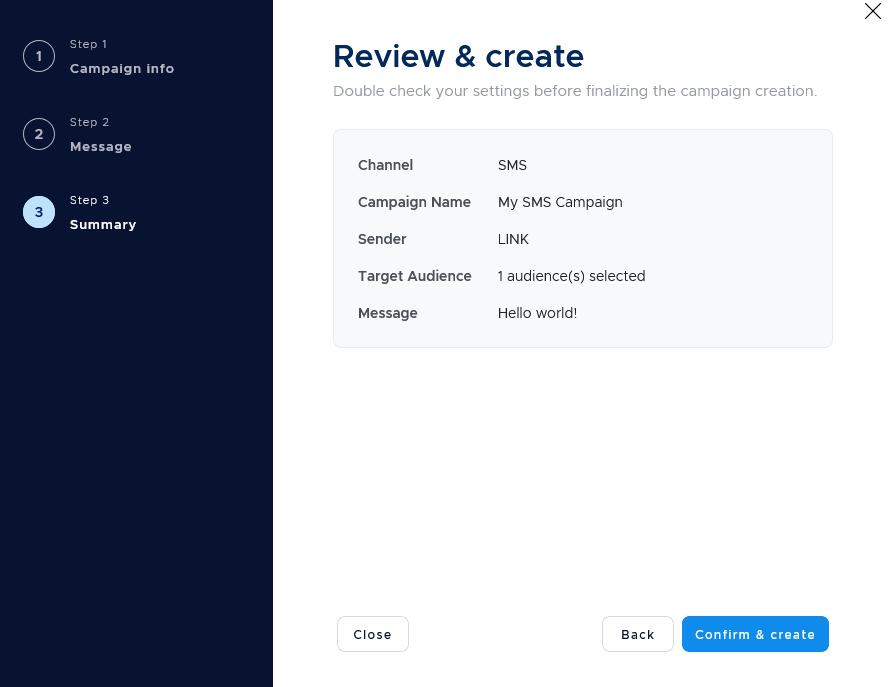
Step 6. Review and create the campaign
Review the campaign setup.
Confirm and create the campaign to open it in the SMS editor.
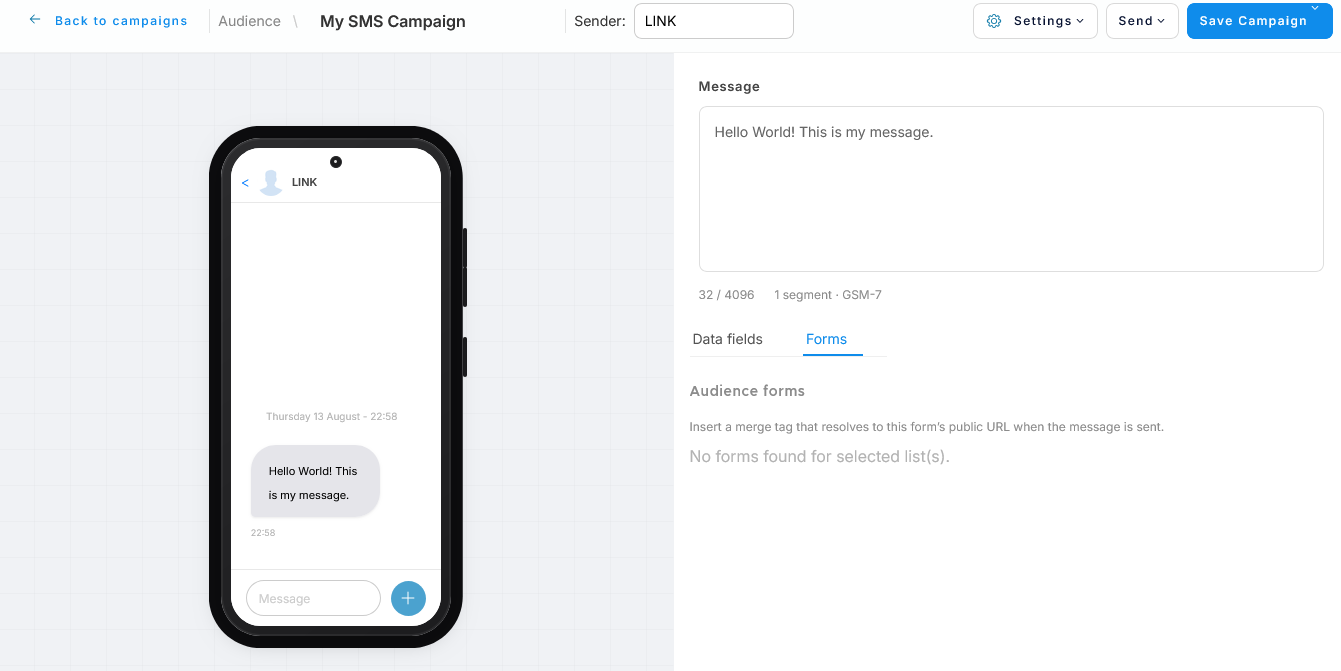
Step 7. Write the SMS message
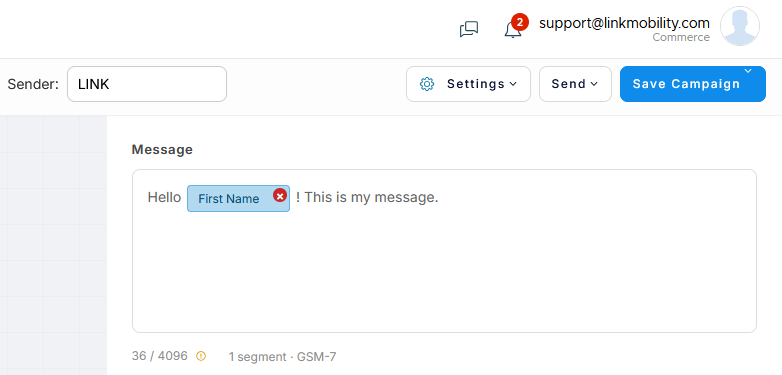
Write and revise the text in the message panel.
Use the live phone preview to check how the message will appear to recipients.
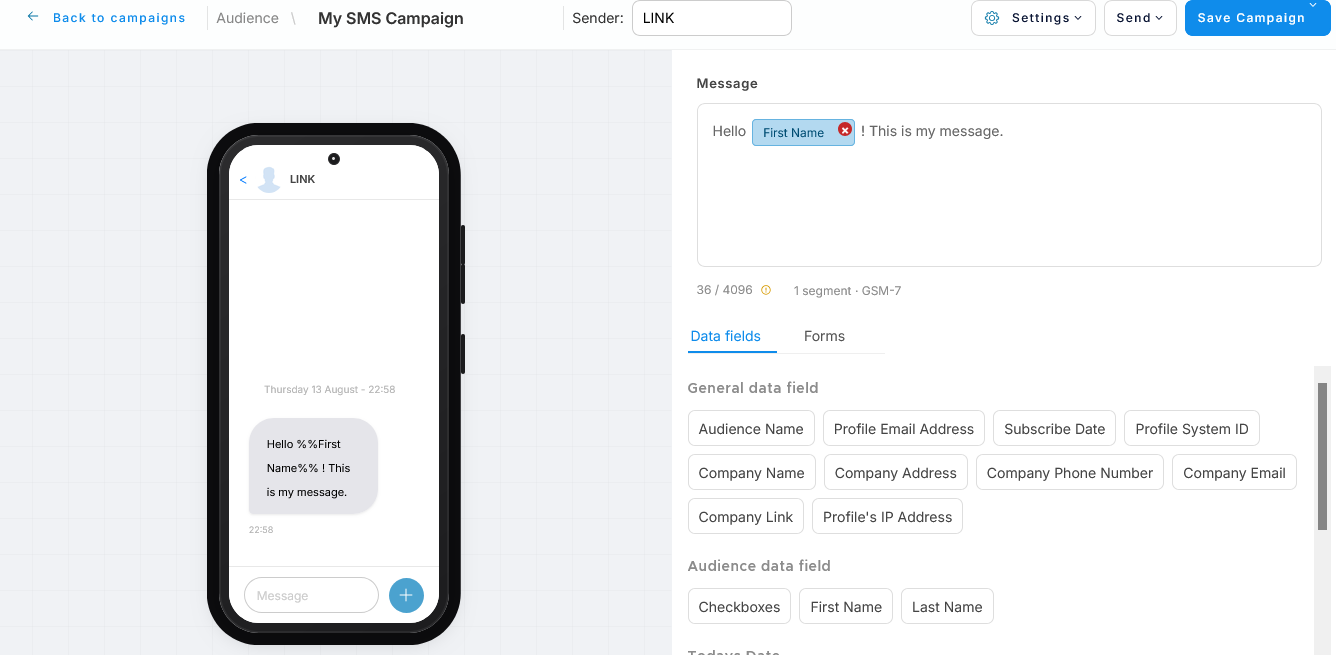
Step 8. Add profile fields
Open the profile fields panel when the message needs profile data or another placeholder.
Insert the required field in the message.
Step 9. Save the campaign
Select Save Campaign to save your work.
When to use this feature
Create an SMS campaign when the message should be short and easy to read on a phone.
Common use cases
- Short updates
Send a concise update to an audience or segments. - Mobile-focused messages
Use SMS when the message is designed to be read in the phone message view. - Profile-based messages
Insert profile fields when the SMS needs information from a profile.
Marketing tip
Write the message for the audience or segments you selected.
Check the live phone preview after you revise the message or add a profile field.
Additional information
SMS editor
SMS campaigns use a dedicated editor with a message panel and live phone preview.
Profile fields
Profile fields and other placeholders are available from the side panel.
Use them when the message needs profile data.
Sender name
Select an appropriate sender name when you create the SMS campaign.
Check that the sender name is allowed for your market before sending.
Campaign editor
The campaign opens in the SMS editor after creation.
Things to know
- An SMS campaign can use an audience or segments.
- The live phone preview updates as you write the message.
- Profile fields and placeholders are available from the side panel.
- Sender name rules can depend on the market.
- Save the campaign as you work.
Troubleshooting
| Problem | Possible cause | Solution |
|---|---|---|
| You are not ready to choose recipients | The audience or segments are not ready | Finish the recipient setup before creating the campaign |
| The SMS text does not look right | The message may need revision | Revise the text and check the live phone preview |
| A profile field needs checking | The field may depend on profile profile | Review the field and test the campaign before the live send |
| The sender name needs review | Sender name rules can depend on the market | Check that the sender name is allowed for your market |