Create an email A/B test in MyLINK MarketingPlatform
Create an A/B test to compare versions of an email and send the winning version to the rest of your audience.
Before you start
You need:
- An audience with at least 10 profiles
- The subject lines, email content, or from names you want to compare
- The send-from name and email address
- A win condition for the test
Create an email A/B test
Step 1. Open A/B-Testing
Open A/B-Testing from the Campaigns area.
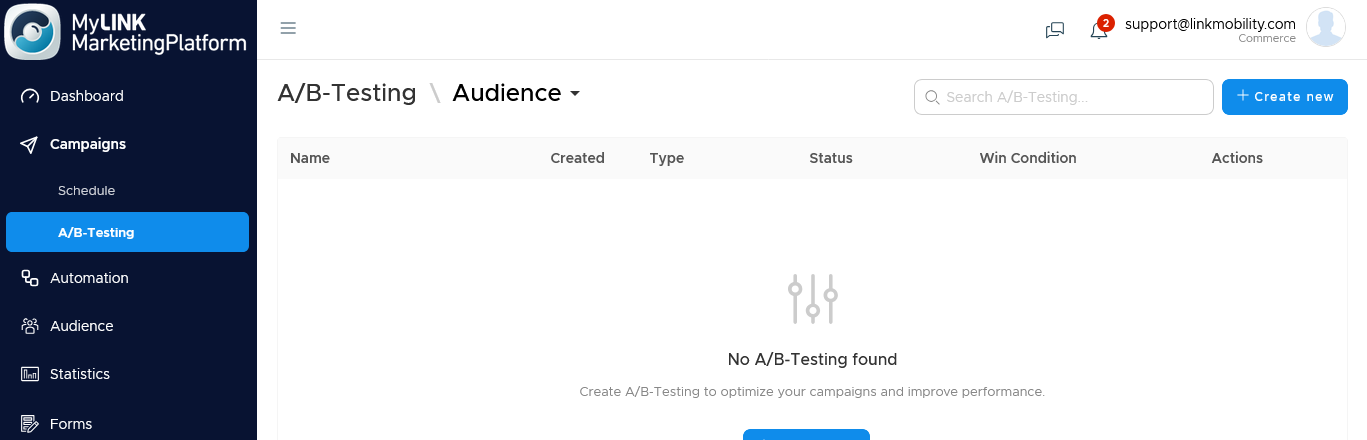
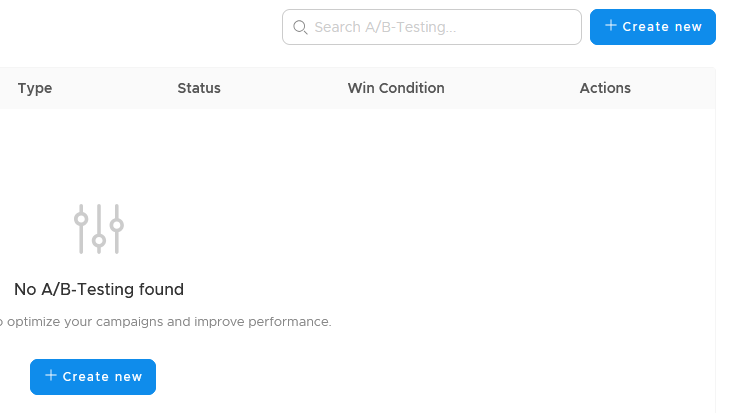
Step 2. Start a new test
Start a new A/B test by using the + Create new-button.
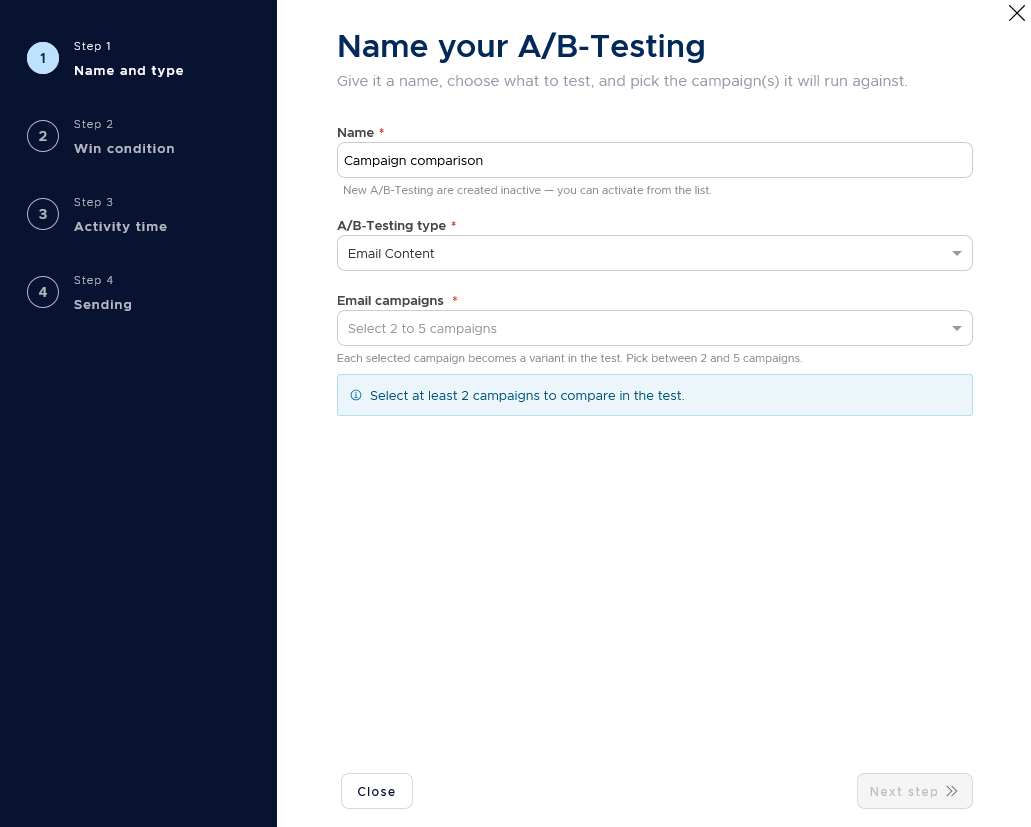
Step 3. Name the test and choose a type
Enter a name for the test.
Choose Subject line, Email content, or From name as the test type.
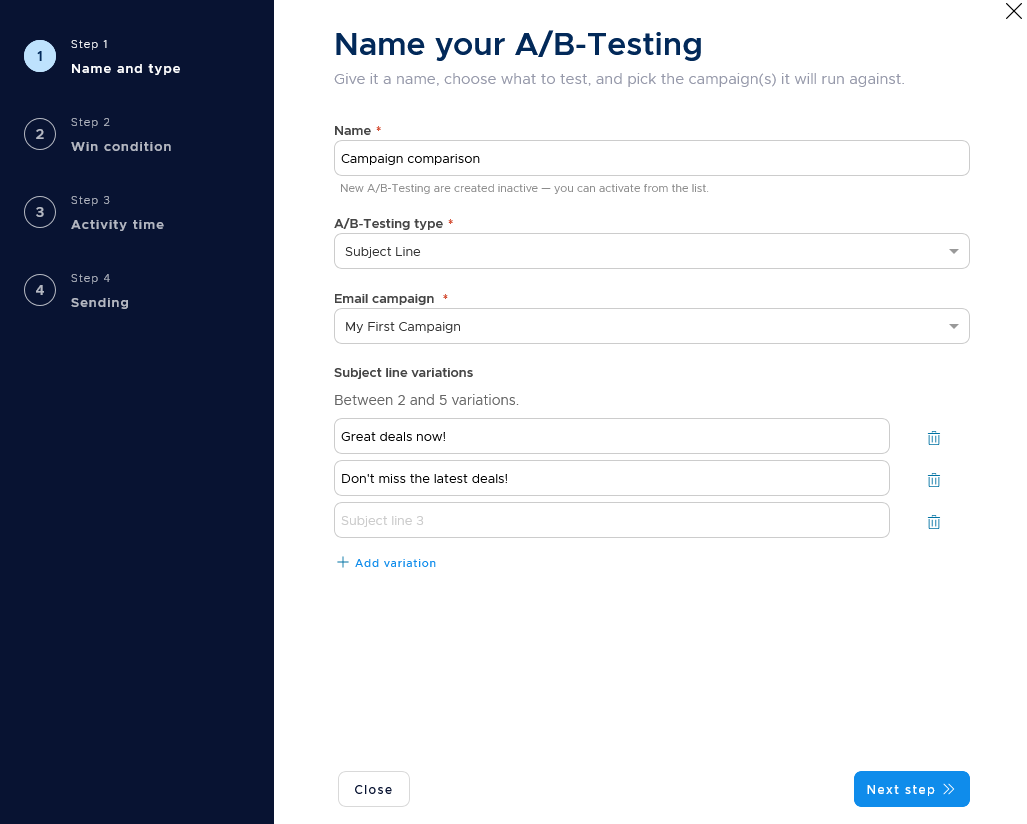
Step 4. Add the variations
Add the subject lines or from names you want to compare as text.
For an email content test, select two to five campaign variations.
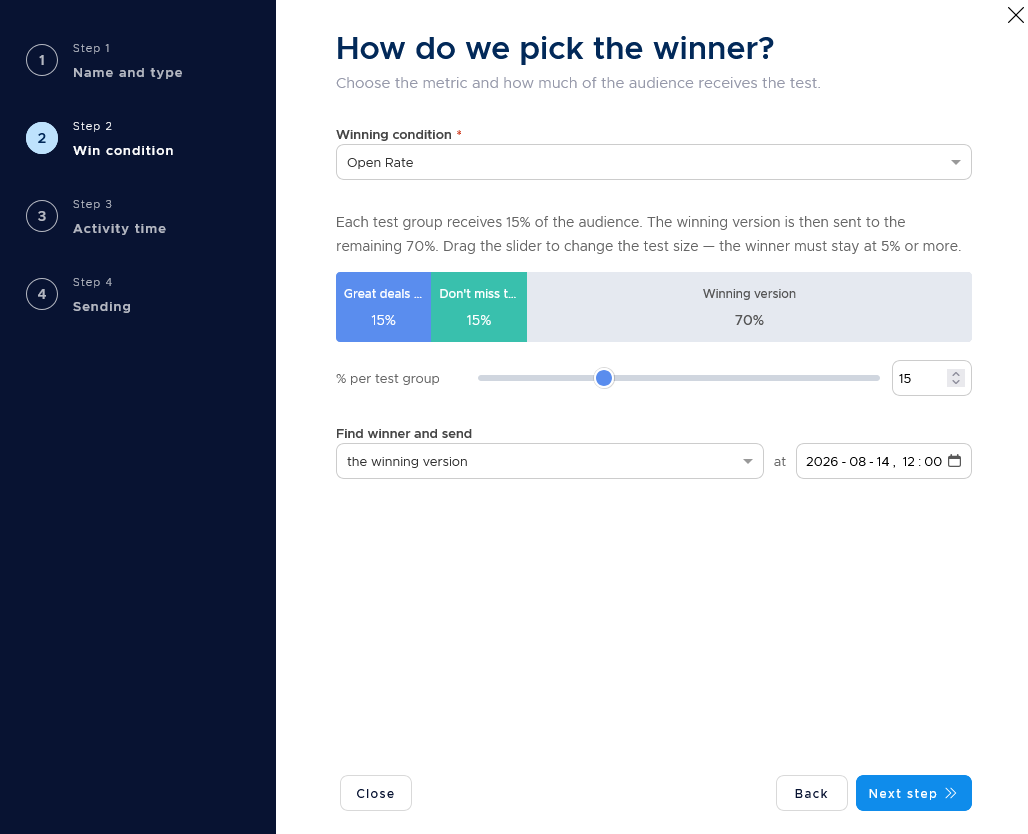
Step 5. Set the win condition
- Choose Open rate, Click-to-open, or Click-through as the metric that decides the winner.
- Use the slider to set how much of the audience receives the test variations.
- The rest of the audience receives the winning version.
- Choose whether the winner is found and sent immediately or at a set time.
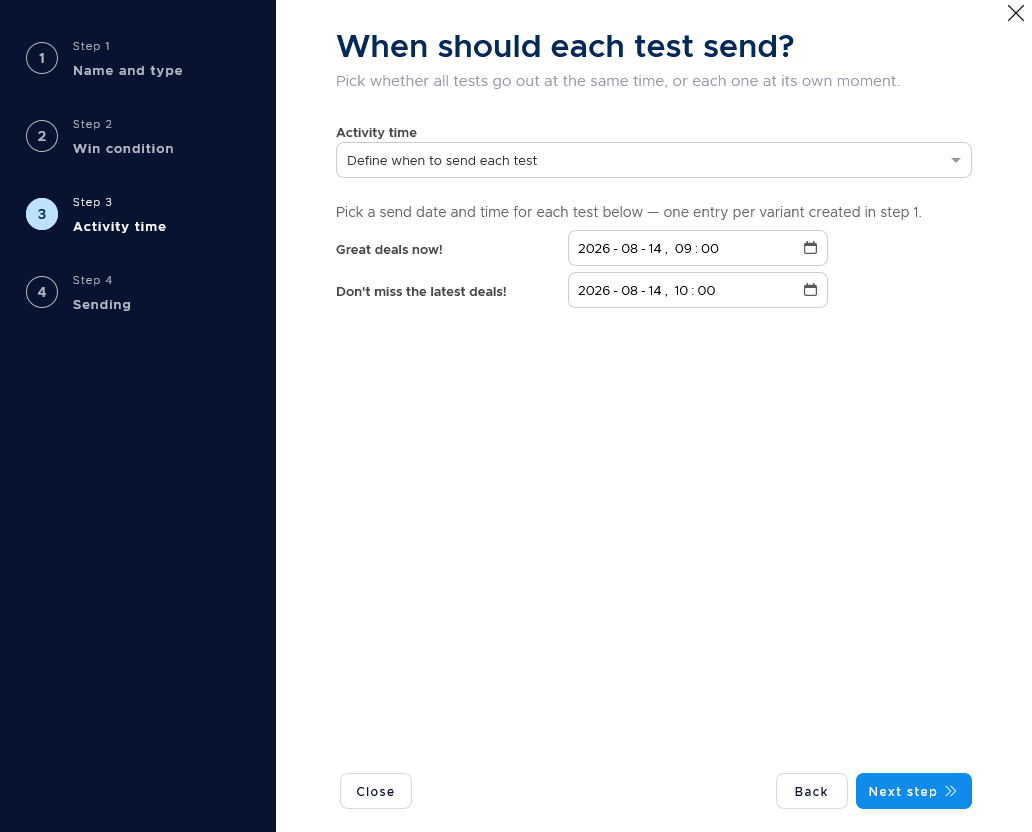
Step 6. Choose the activity time
Choose whether all variations send at the same time or at different times.
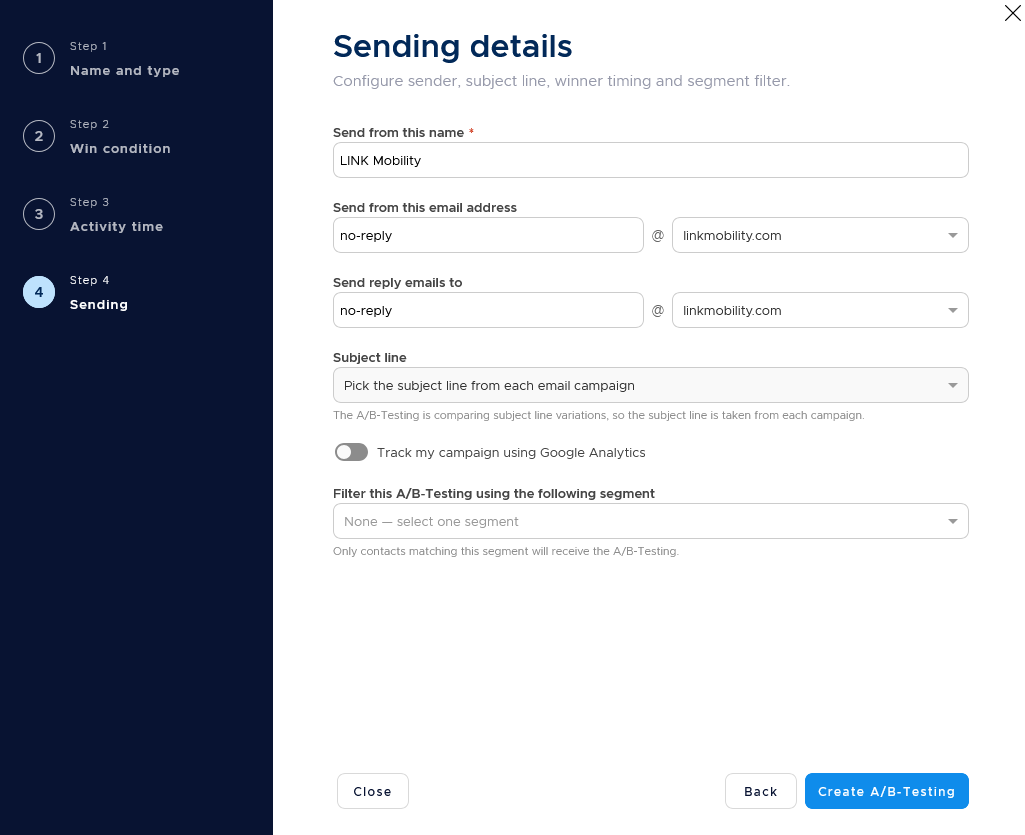
Step 7. Add the sending details
- Enter the send-from name, send-from email address, and reply-to address.
- Review the subject handling for the test.
- Add an optional segment filter or turn on Google Analytics tracking when needed.
Step 8. Activate the test
Review the test setup and activate the test when it is ready.

When to use this feature
Use A/B testing when you want to compare one part of an email before sending the winning version to the rest of your audience.
Common use cases
- Subject line testing
Compare subject lines to see which version gets the best result for the selected win condition. - Email content testing
Compare two to five campaign variations with different email content. - From name testing
Compare from names to see which version performs best.
Marketing tip
Change one main element in each test so the result is easier to interpret.
Choose the win condition before you build the variations. Use a metric that matches the action you want recipients to take.
Additional information
Test types
A/B-Testing supports subject line, email content, and from name tests.
Subject line and from name variations are entered as text.
Email content tests use two to five campaign variations.
Win conditions
The available win conditions are open rate, click-to-open, and click-through.
Audience split
The audience slider controls how much of the audience receives the test variations.
The remaining audience receives the winning version.
Test statuses
The A/B-Testing list can show Not Started, In Progress, Winner Found, Winner Not Found, and Completed.
Test actions
You can activate, pause, view, or delete a test from the A/B-Testing list.
Things to know
- A/B-Testing is for email campaigns.
- An A/B test needs an audience with at least 10 contacts.
- Email content tests support two to five campaign variations.
- The winning version can be found and sent immediately or at a set time.
- Variations can send at the same time or at different times.
Troubleshooting
| Problem | Possible cause | Solution |
|---|---|---|
| You cannot set up the test for the selected audience | The audience has fewer than 10 contacts | Choose an audience with at least 10 contacts |
| You cannot add more email content variations | Email content tests support two to five variations | Use no more than five campaign variations |
| The test has not started | The test may have the status Not Started | Open the test, review the setup, and activate it |
| The test is not sending | The test may be paused | Open the test list and activate the test when it is ready |