Set up profile fields in MyLINK MarketingPlatform
Create profile fields to store information on profiles, such as first name, country, or birthday.
Before you start
You need:
- Access to Audience
- A plan for the profile information you want to store
- The file columns you want to import, if you are preparing for import
Set up profile fields
Step 1. Open profile fields
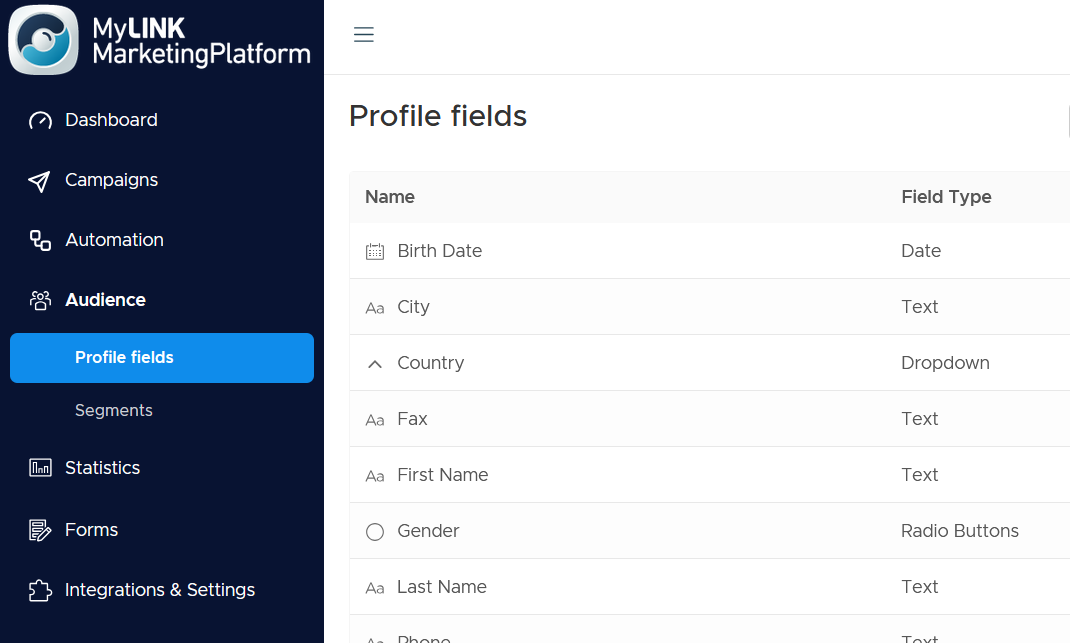
Open Audience > Profile fields.
Step 2. Add a field
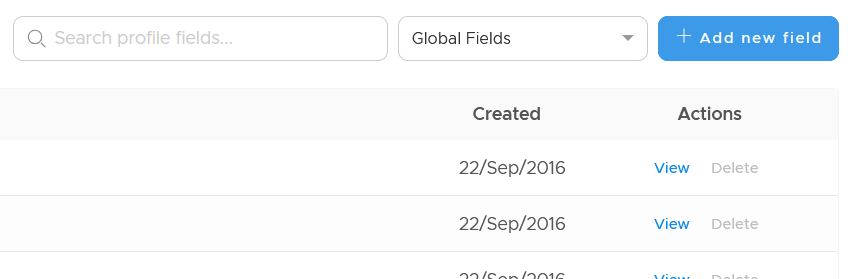
Select Add new field.
Step 3. Name the field and choose a field type
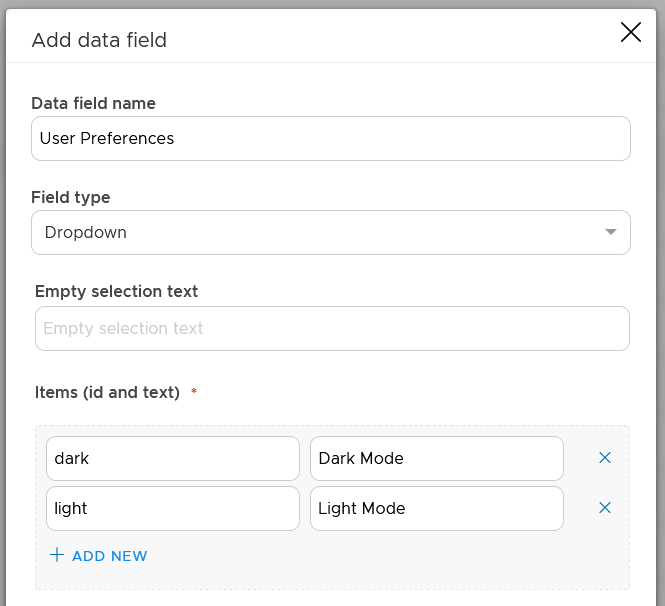
Enter a name for the profile field. Choose a field type such as text, number, date, or dropdown.
Use a name your team will recognize during import and segmentation. You can rename a field later, but its type stays fixed after creation.
When to use this feature
Use profile fields when you need profile data for import, targeting, personalization, or reporting.
Common use cases
- Personalize a newsletter
Use a first name field when you want to personalize greeting text. - Target by market
Use a country field when you want to send a campaign to profiles in a specific country. - Build date based segments
Use a birthday field when you need a date value for later targeting.
Marketing tip
Create only the fields you need for your next campaign first.
You can add more fields later when your segmentation plan is clearer.
Additional information
Standard profile details
Email address and phone number are standard profile details.
Custom profile fields
Profile fields add extra information to each profile.
Field type
The field type stays fixed once the field has been created.
Things to know
- Create profile fields before importing profiles.
- Field names should be clear to your team.
- Field type cannot be changed after creation.
Troubleshooting
| Problem | Possible cause | Solution |
|---|---|---|
| A file column does not map cleanly | The matching profile field may not exist | Create the profile field before import |
| The field has the wrong type | Field type stays fixed after creation | Create a new field with the correct type |
| The field name is unclear | The name may not match the data | Rename the field if needed |