Create an audience and add profiles in MyLINK MarketingPlatform
Create an audience to hold profiles, then add profiles manually or import profiles from a file.
Before you start
You need:
- Permission to import and contact the profiles
- Profile fields for the data you plan to import
- Sender details for email or SMS
Create an audience and add profiles
Step 1. Open Audience
Open Audience to reach the profiles page.
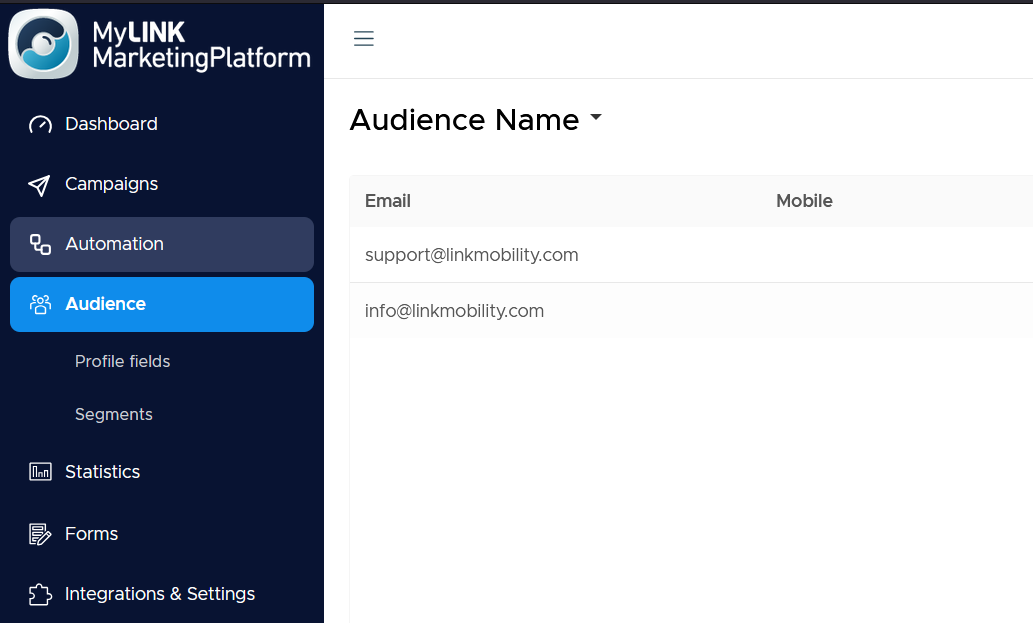
Step 2. Choose the audience view
Use the audience dropdown at the top to choose which audience you are viewing.
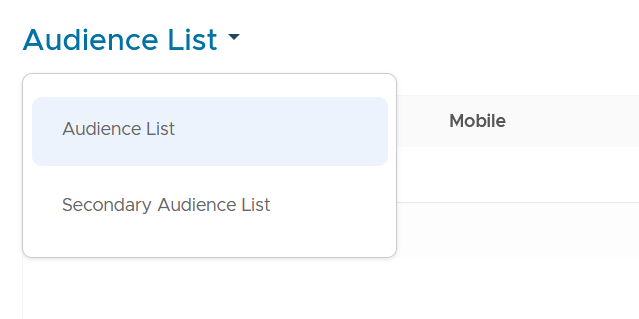
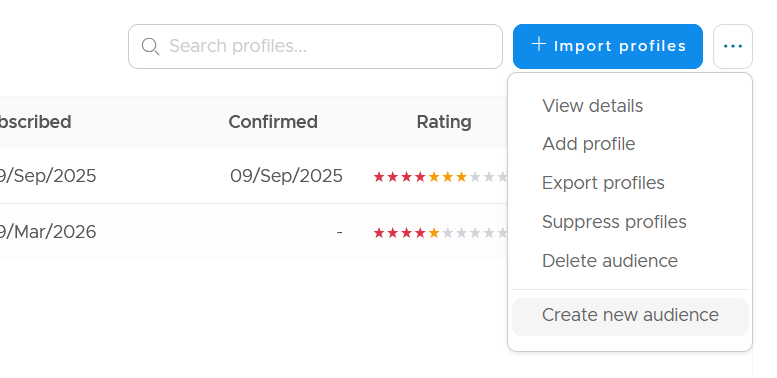
Step 3. Create an audience
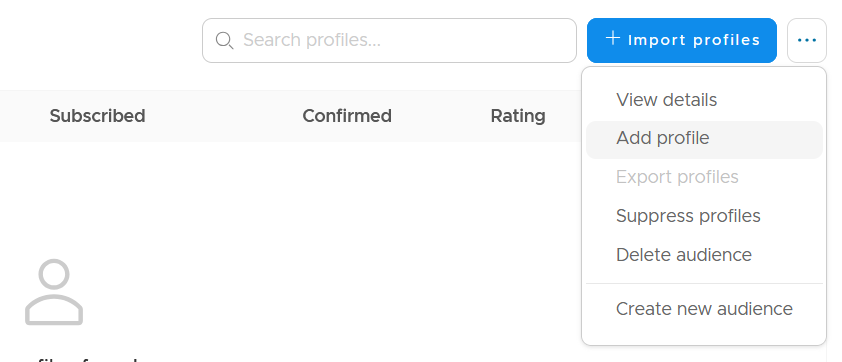
Open the "more actions"-menu beside the audience dropdown.
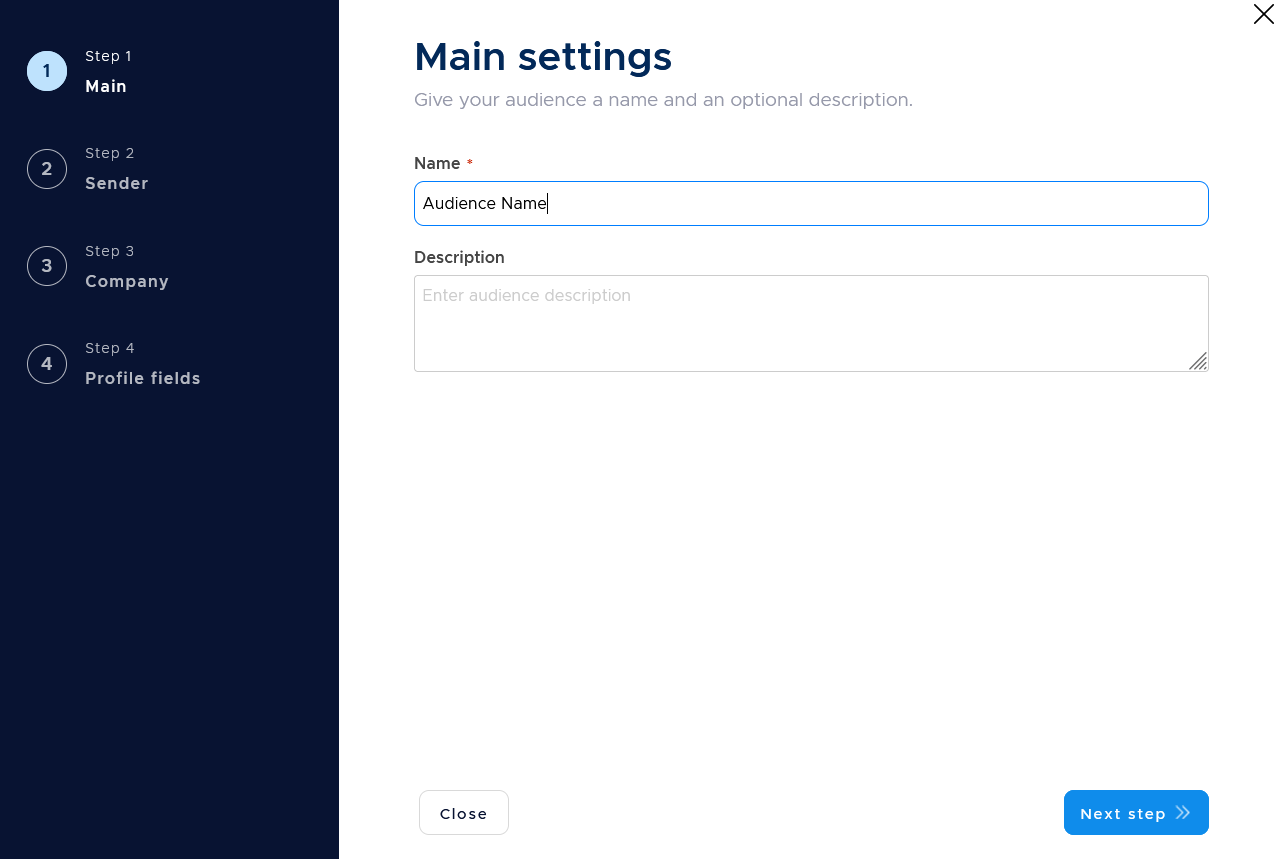
Step 4. Name your Audience and fill out details
Name your your audience, and fill out the details in the wizard. This includes the default sender, your company information and which profile fields should be used.
Step 5. Add profiles
Use Add profile under the "more actions"-menu to add one profile.
Use Import profiles button to bring in a CSV, TXT, or XLSX file.
When to use this feature
Use an audience when you need a container for profiles that belong together.
Common use cases
- Create a newsletter audience
Use an audience to hold profiles that should receive your newsletter. - Prepare for a first campaign
Create the audience before you build the campaign so you can choose it in the campaign wizard. - Separate different contact groups
Use audiences to keep profile groups apart when your account setup and contact strategy require it.
Marketing tip
Before importing, check consent, subscription status, and unsubscribe handling.
Only import profiles you are allowed to contact.
Additional information
Audience actions
The more menu can include create audience, edit audience settings, export profiles, suppress profiles in bulk, and delete audience.
Import wizard
The import wizard lets you choose how new and existing profiles should be handled, map file columns to profile fields, and review the import before it runs.
Things to know
- An audience is the container that holds profiles.
- The audience dropdown controls which audience you are viewing.
- Profile fields help with import mapping.
- Consent and unsubscribe handling should be correct before sending.
Troubleshooting
| Problem | Possible cause | Solution |
|---|---|---|
| You are viewing the wrong profiles | The wrong audience may be selected | Use the audience dropdown |
| A file column does not map | The matching profile field may be missing | Create the profile field before import |
| Profiles should not receive campaigns | Consent or subscription status may not be correct | Do not send until the data is correct |