Import profiles to an audience in MyLINK MarketingPlatform
Import profiles to an audience from a CSV, TXT, or XLSX file.
Before you start
You need:
- An audience
- A profile file in CSV, TXT or XLSX format
- Profile fields that match the file columns
Import profiles to an audience
Step 1. Open Audience
Open Audience.
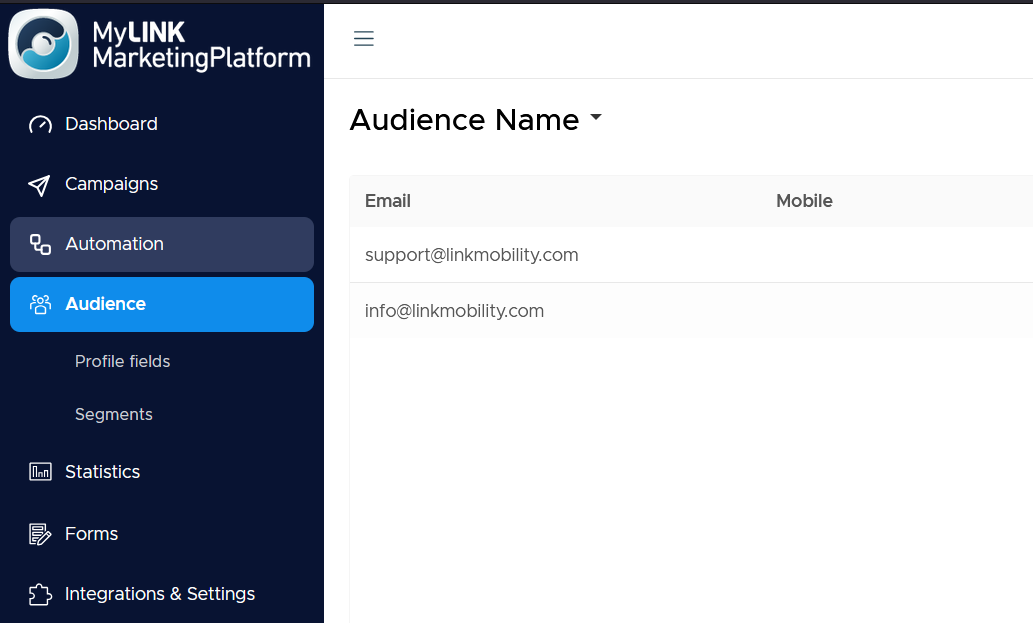
Step 2. Choose the audience
Use the audience dropdown to choose the audience you want to import profiles into.
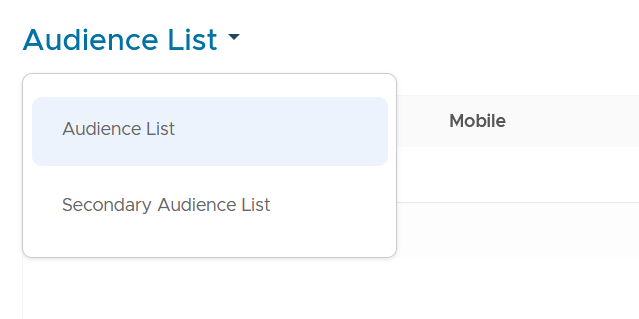
Step 3. Start the import
Select Import profiles.
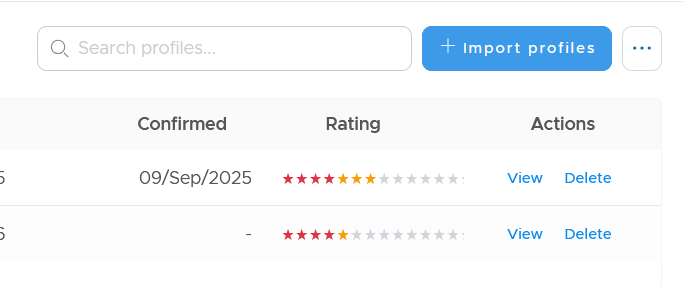
Step 4. Choose how profiles should be handled
Use the import wizard to choose how new and existing profiles should be handled.
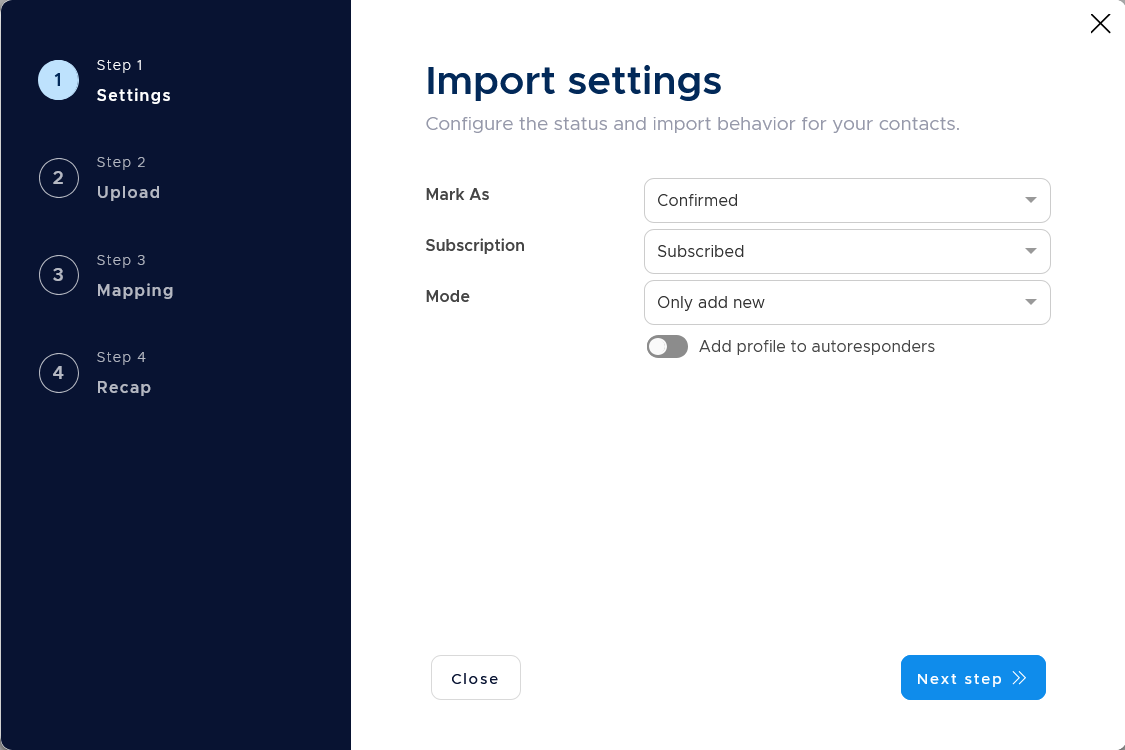
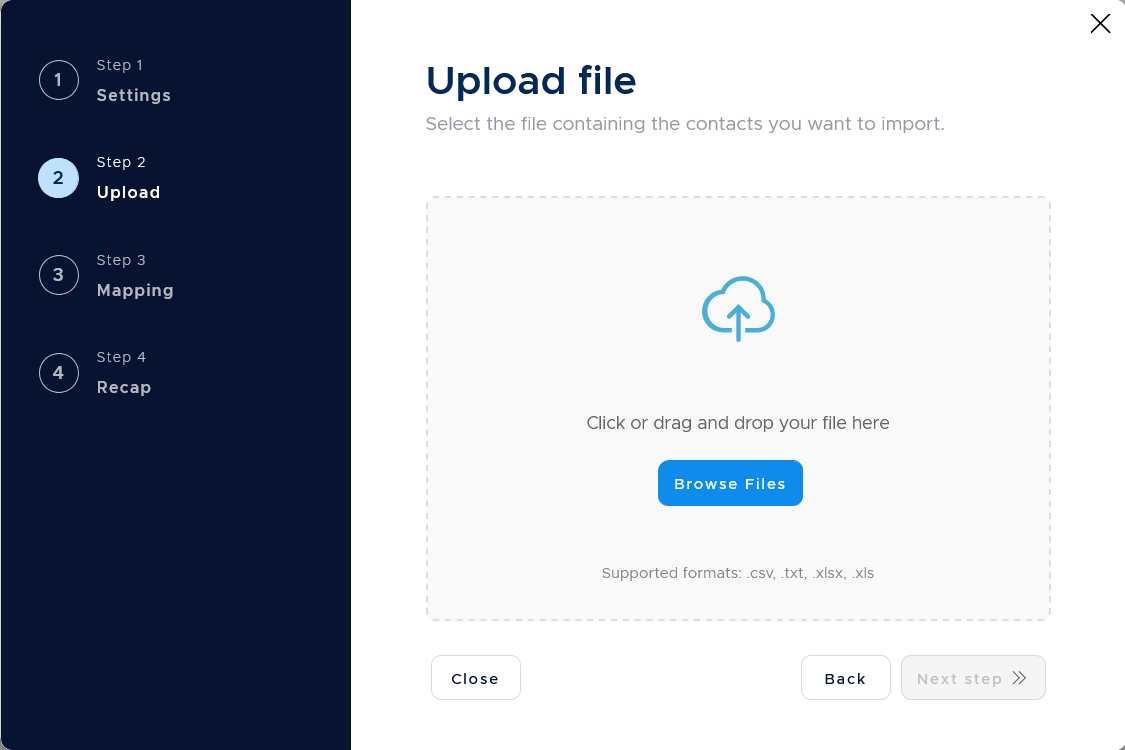
Step 5. Choose file to import
Import profiles by dragging and dropping the file containing your profiles into the upload area. You can import files in CSV, TXT, and XLSX.
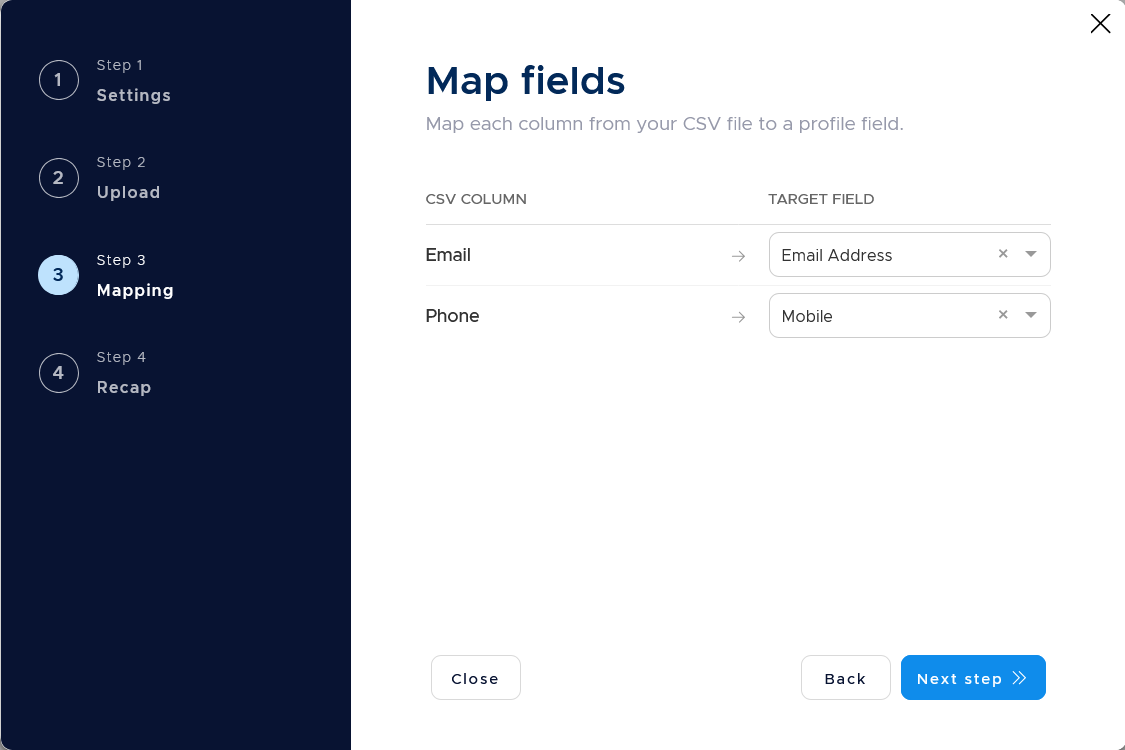
Step 6. Map the profile fields
Map each field that you wish to import from your file to the corresponding profile fields, using the dropdown menu.
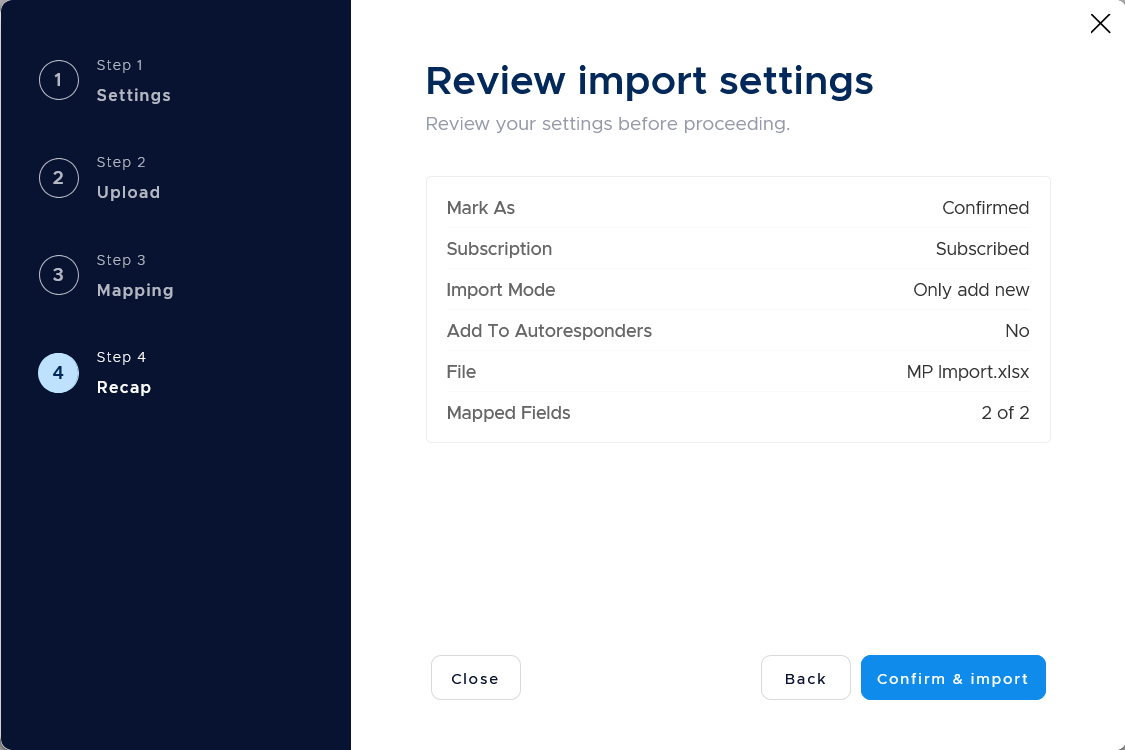
Step 7. Review and import
Review your choices and settings. When done, use the Confirm & import-button to start the import.
When to use this feature
Use import profiles when you have a file of contacts that should be added to an audience.
Common use cases
- Add newsletter subscribers
Import a subscriber file into the audience you use for newsletter campaigns. - Prepare a campaign audience
Import a smaller approved contact list before creating your first campaign. - Update existing profiles
Use the import wizard to decide how new and existing profiles should be handled.
Marketing tip
Clean up your file before import.
Use column names that match your profile fields where possible.
Additional information
Supported file formats
The import support the following file formats: CSV, TXT and XLSX.
Profile field mapping
Each file column should be mapped to a profile field.
Permission
Only import profiles you are allowed to contact.
Things to know
- Create profile fields before import.
- Review how new and existing profiles should be handled.
- Check consent, subscription status, and unsubscribe handling before sending.
Troubleshooting
| Problem | Possible cause | Solution |
|---|---|---|
| A column cannot be mapped | The profile field may not exist | Create the profile field before import |
| Profiles are in the wrong audience | The wrong audience may be selected | Check the audience dropdown before import |
| The import should not continue | Consent or subscription status may not be correct | Stop and fix the source data before sending |