View tracking statistics in MyLINK MarketingPlatform
Use the Tracking report to review website behavior captured by web tracking.
Before you start
You need:
- Access to Statistics
- An audience
- A web tracking setup with captured events
View tracking statistics
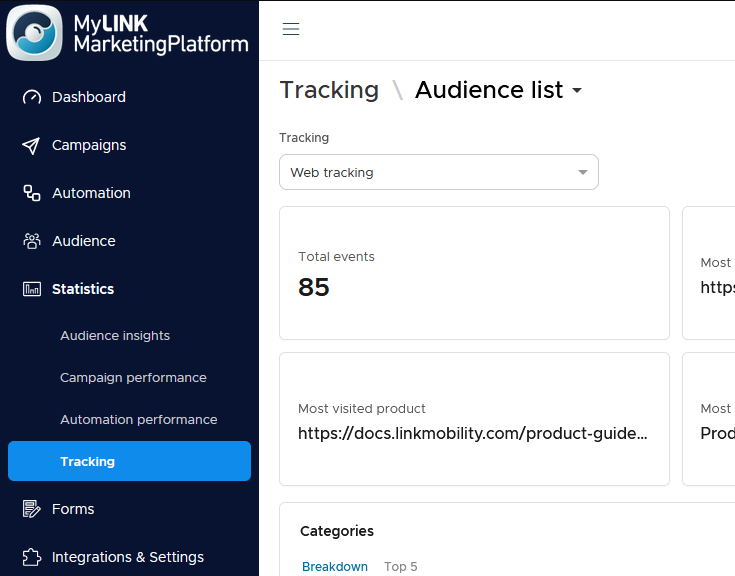
Step 1. Open Tracking
Go to Statistics and open Tracking.
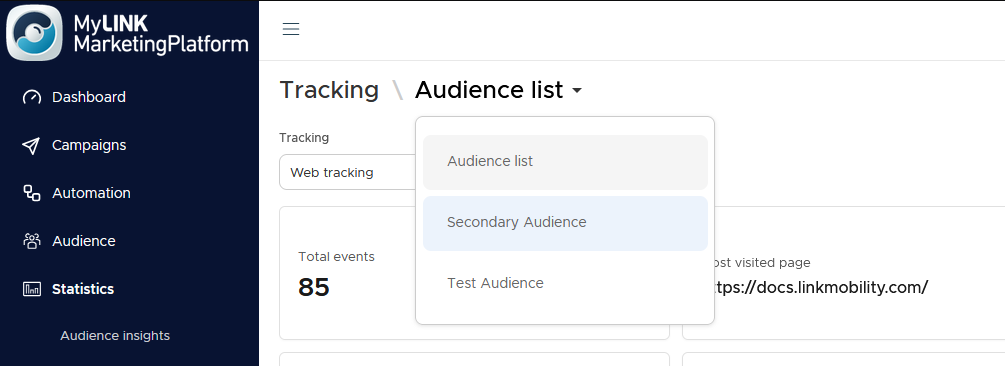
Step 2. Choose the audience
Select the audience you want to analyze.
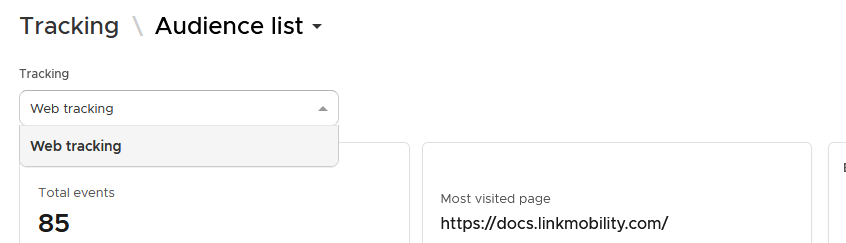
Step 3. Choose the tracking setup
Select the tracking setup you want to review.
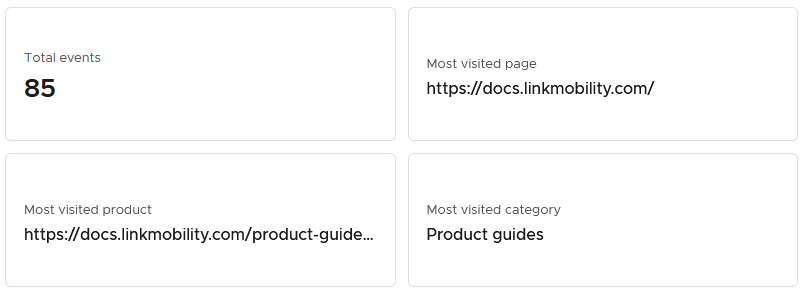
Step 4. Review headline figures
Check total events and the most-visited page, product, and category.
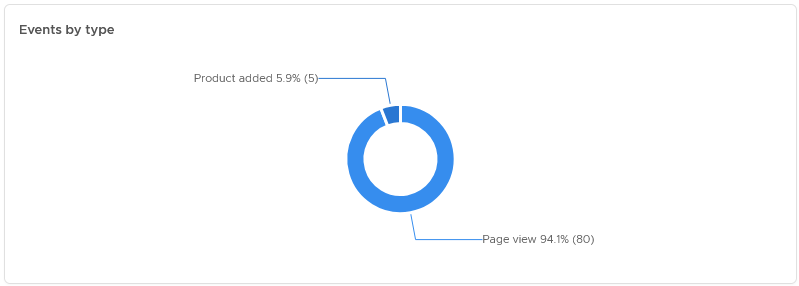
Step 5. Review events by type
Use the donut chart to see the breakdown of event types.
Step 6. Review categories, products, and links
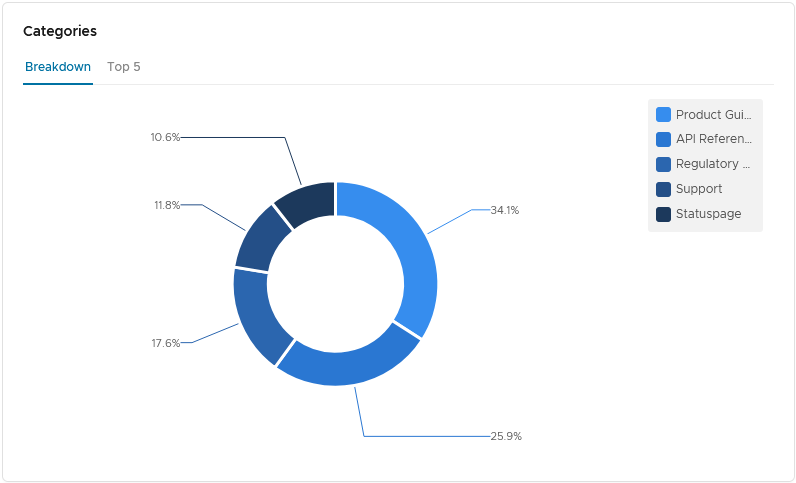
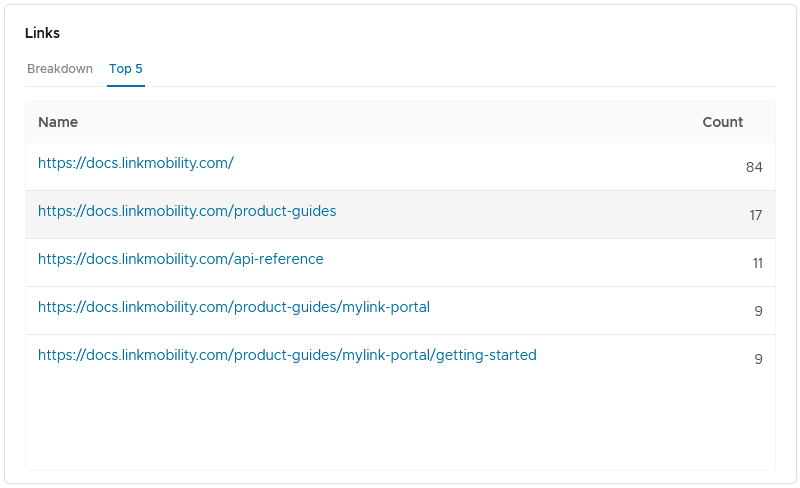
Use the chart or top 5 table view for categories, products, and links.
Step 7. Open linked pages
Use links in the tables to open pages directly when available.
When to use this feature
Use tracking statistics when website behavior should guide your next campaign or automation.
Common use cases
- Product interest
Find popular product pages and categories. - Cart behavior
Review activity related to carts. - Follow-up content
Use tracked behavior to choose follow-up content.
Marketing tip
Compare tracking results with campaign link clicks. If email clicks lead to product views but not later action, use a trigger or flow to follow up.
Additional information
Web tracking requirement
Tracking statistics depend on web tracking being set up.
Report content
The report includes total events, most-visited page, most-visited product, most-visited category, events by type, categories, products, and links.
Things to know
- You must choose an audience and a tracking setup.
- Categories, products, and links can be shown as a chart or a top-5 table.
- Table items can link out to the page when available.
Troubleshooting
| Problem | Possible cause | Solution |
|---|---|---|
| No tracking setup appears | Web tracking may not be created | Set up web tracking first |
| No events appear | Tracking may not have captured activity yet | Verify tracking and allow time for events |
| The wrong website data appears | The wrong tracking setup may be selected | Choose the correct tracking setup |
| Links do not open | A table item may not have a link | Review another item or check the tracking source data |