Add a connector in MyLINK MarketingPlatform
Use a connector to bring profiles and updates into MyLINK MarketingPlatform from another service.
Before you start
You need:
- Access to Integrations & Settings
- Details for the service you want to connect
- A decision on how incoming profiles should be handled
- Permission to test and save the connection
Add a connector
Step 1. Open Connectors
Go to Integrations & Settings and open Connectors. Choose the Audience that you want to create a connector for.
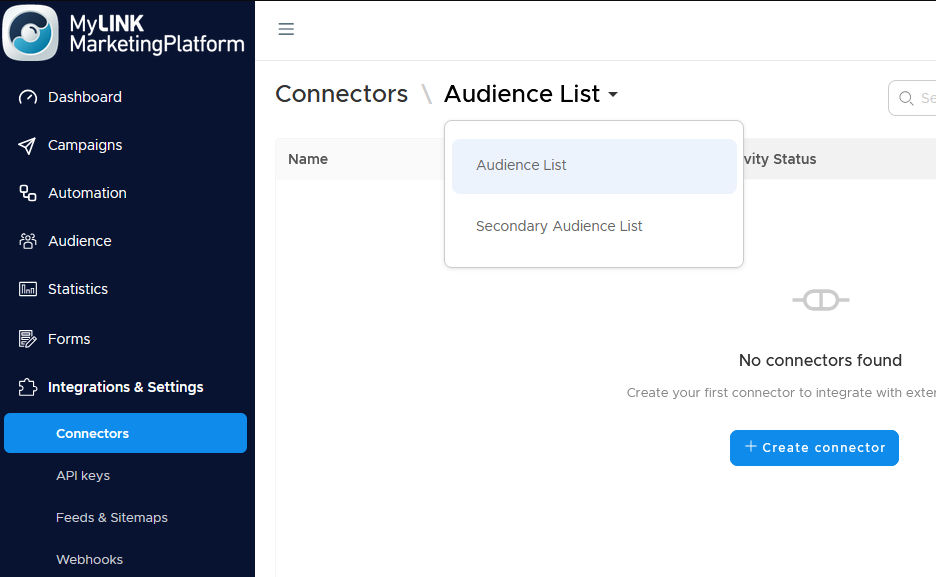
Step 2. Create a new connector
Click + Create new and choose the service you want to connect from the gallery.
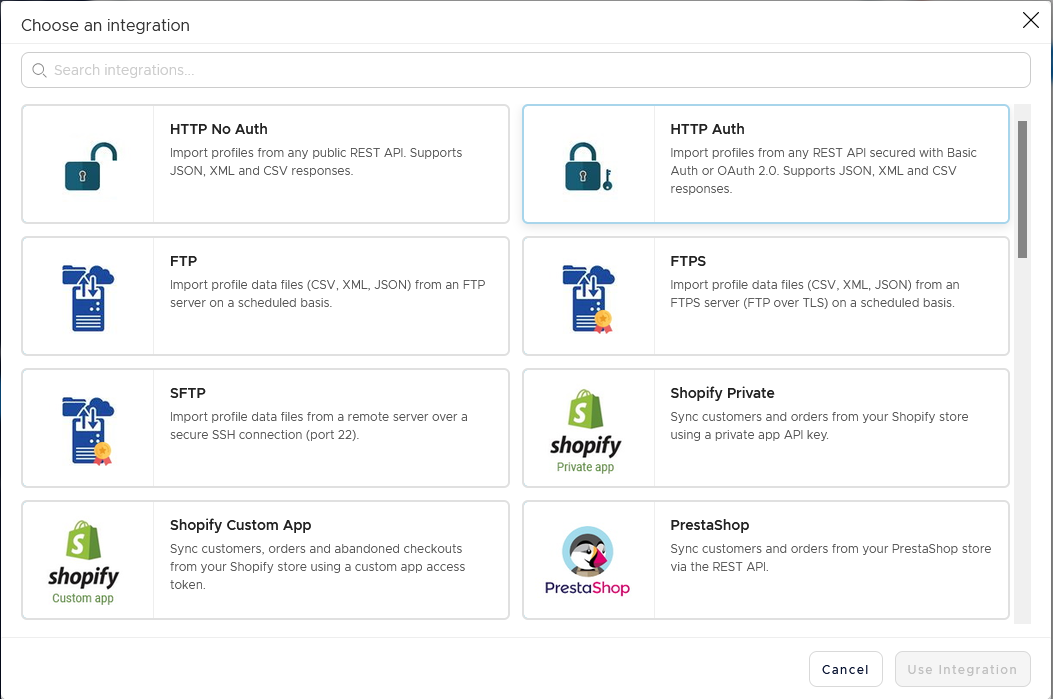
Step 3. Turn the connector on
Switch the connector on and enter a name.
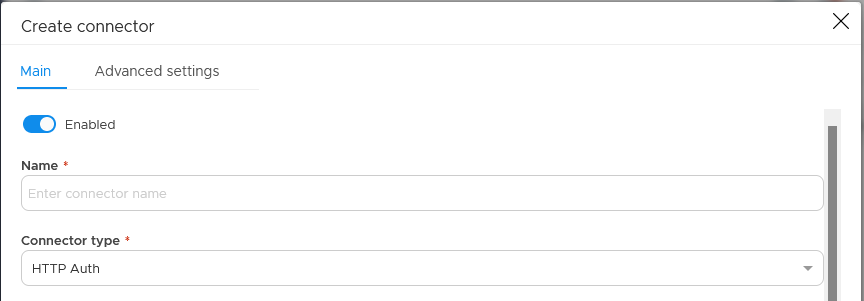
Step 4. Add service details
Fill in the details that link your account to the selected service.
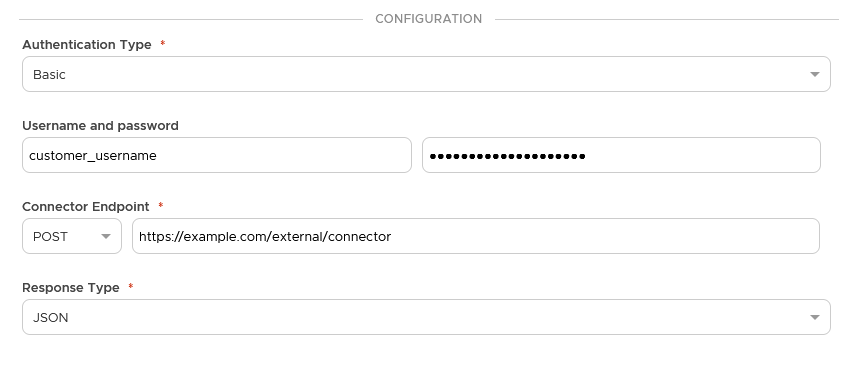
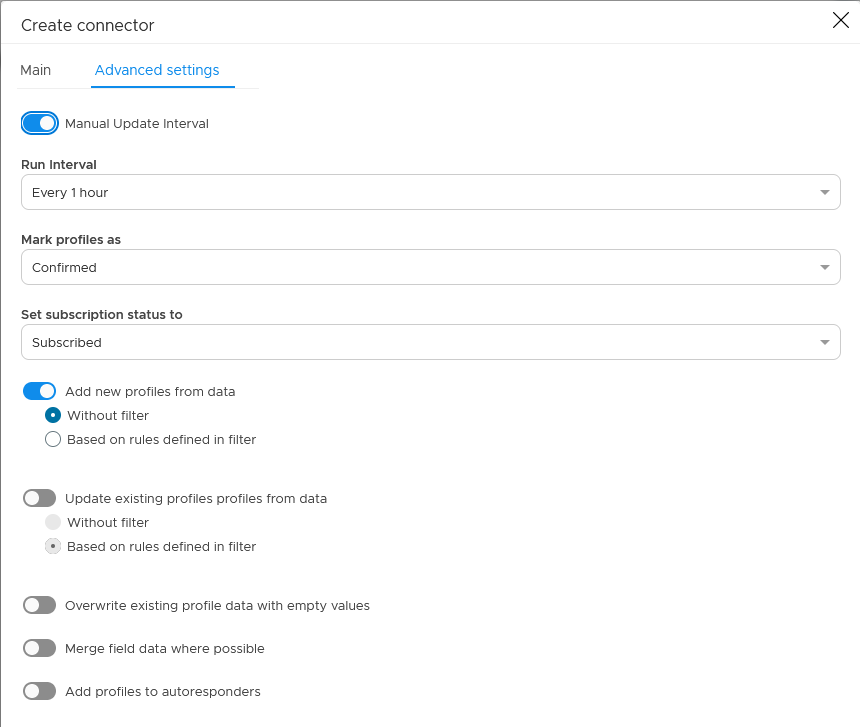
Step 5. Configure advanced profile settings
Under Advanced settings, set the refresh interval, choose how new and existing profiles should be handled, and select the subscription status for incoming profiles.
Step 6. Test the connection
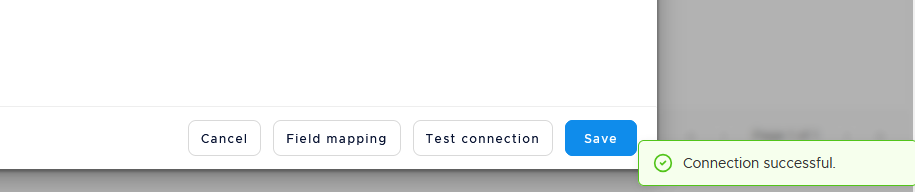
Use Test Connection to check whether the connection works.
Step 7. Save the connector
Save the connector when the test is successful.
When to use this feature
Use connectors when profile data should move from another service into MyLINK MarketingPlatform without manual imports.
Common use cases
- New signups
Sync new signups from another service. - Profile updates
Update profile details across systems. - Subscription data
Keep subscription data current.
Marketing tip
Decide how updates should work before turning a connector on. This helps avoid overwriting profile data you still need.
Additional information
Connectors list
The Connectors list shows each connector name, whether it is on or off, and its current status.
Connector status
Status examples include running, idle until the next update, or paused.
Stop a connector
To stop a connector, switch it off or delete it.
Things to know
- Connector setup details depend on the service you choose.
- A connector can add new profiles, update existing profiles, or both.
- The refresh setting controls how often the connector checks for updates.
- Use Test Connection before saving.
Troubleshooting
| Problem | Possible cause | Solution |
|---|---|---|
| Test Connection fails | Service details may be wrong | Review the service details and test again |
| Profiles are not added | Add new profiles may not be selected | Review the profile handling settings |
| Existing profiles are not updated | Update existing profiles may not be selected | Review the profile handling settings |
| A connector stops syncing | It may be off or paused | Check the connector status and switch it on if needed |