Get help in MyLINK MarketingPlatform
Use the Top bar to open customer support, view notifications, or access Online Help from the Profile menu.
Before you start
You need:
- To be signed in to MyLINK MarketingPlatform
- Access to the Top bar
- The correct customer account selected
Get help in MyLINK MarketingPlatform
Step 1. Open customer support
Select the speech bubble icon in the Top bar to open customer support.
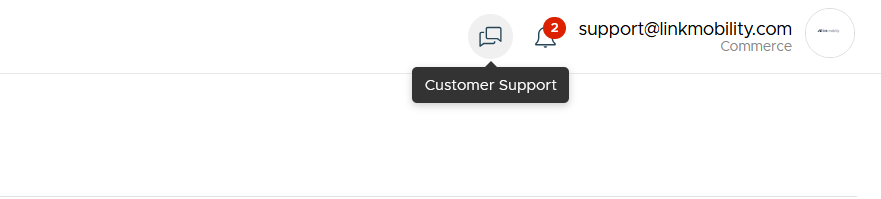
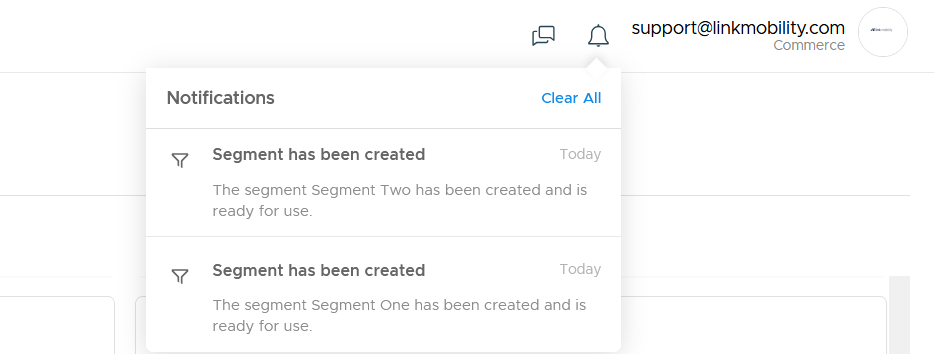
Step 2. Check notifications
Select the bell in the Top bar to view notifications.
Notifications can include campaign activity, imports, and segment updates.
Step 3. Open Online Help
Open the Profile menu.
Select Online Help.
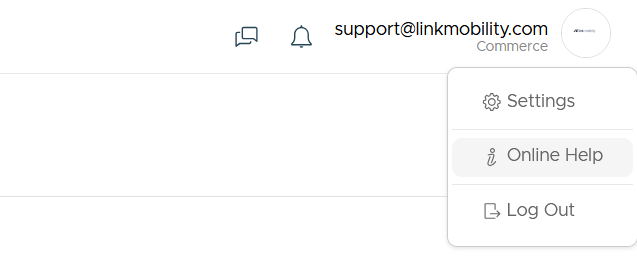
Step 4. Open settings or log out
Use the Profile menu to open Settings or Log Out.
When to use this feature
Use help and notifications when you need support, product guidance, or updates about platform activity.
Common use cases
- Ask for support
Use the speech bubble icon when you get stuck. - Check activity
Use notifications to see updates such as campaign activity, imports, and segment updates. - Open product guidance
Use Online Help when you need instructions while working in the platform.
Marketing tip
Check notifications after imports, segment updates, and campaign activity.
This helps you catch setup or campaign activity before you continue with the next step.
Additional information
Customer support
The speech bubble icon in the Top bar opens customer support.
Notifications
The bell shows notifications such as campaign activity, imports, and segment updates.
Profile menu
The Profile menu gives access to Settings, Online Help, and Log Out.
Things to know
- Customer support is in the Top bar.
- Notifications are shown from the bell icon.
- Online Help is in the Profile menu
Troubleshooting
| Problem | Possible cause | Solution |
|---|---|---|
| You need support | You may be stuck in a workflow | Use the speech bubble icon |
| You need product instructions | You may need Online Help | Open the Profile menu and select Online Help |
| You need to log out | Log Out is in the Profile menu | Open the Profile menu and select Log Out |