Use the Dashboard Get started checklist in MyLINK MarketingPlatform
Use the Dashboard Get started checklist to move through setup tasks for your first campaign in MyLINK MarketingPlatform.
Before you start
You need:
- Access to the Dashboard
- The correct customer account
- An account that is set up to show the Get started checklist
Use the Dashboard Get started checklist
Step 1. Open the Dashboard
Open Dashboard from the left menu.
Step 2. Find the Get started checklist
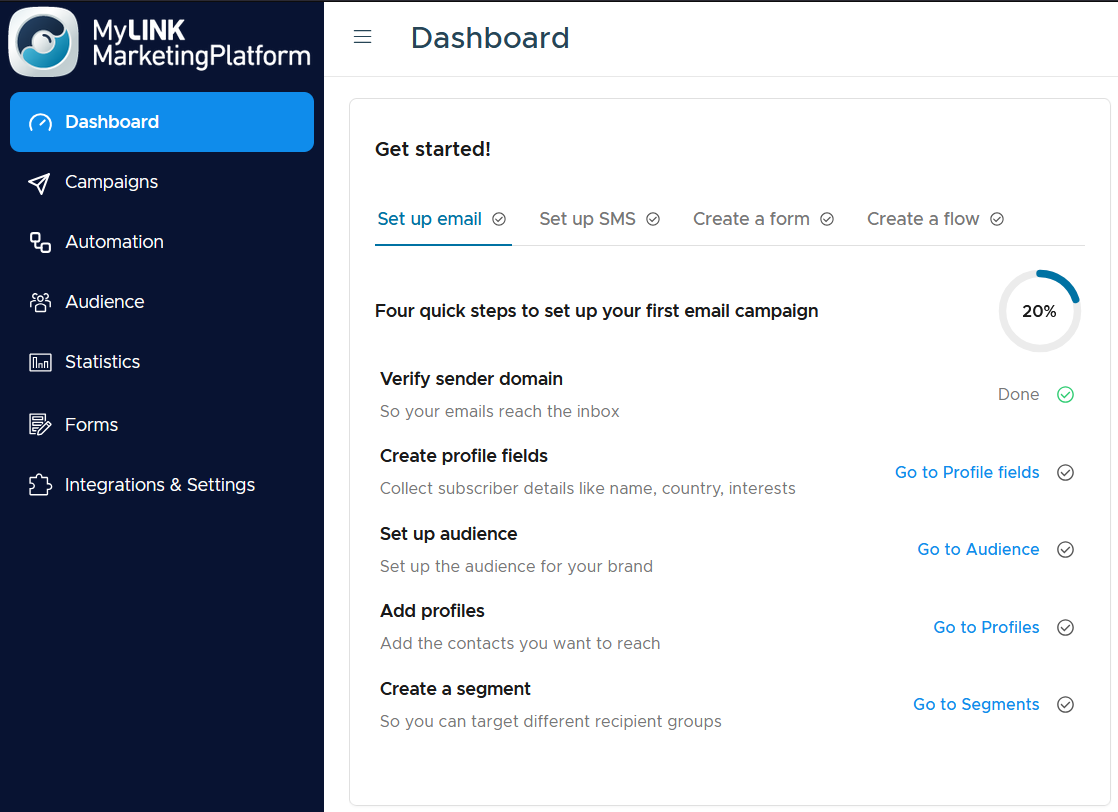
Look for the Get started checklist on the Dashboard.
The checklist appears when your account is set up for it.
Step 3. Choose an onboarding path
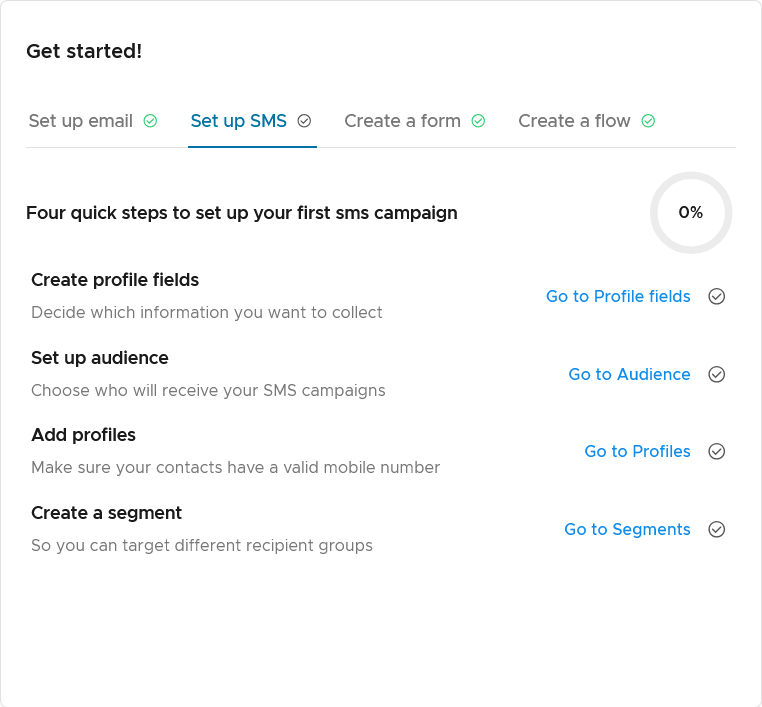
Use the tabs at the top of the checklist to switch between paths such as email, SMS, forms, and flows.
Step 4. Open a setup task
Select a checklist task to continue setup, such as verifying your sender domain, creating profile fields, setting up an audience, adding profiles, or creating a segment.
When to use this feature
Use the Get started checklist when you want a guided path through the first setup tasks.
Common use cases
- Set up a first email campaign
Use the email path to work through sender setup, profile fields, audience setup, profiles, and segments. - Set up SMS activity
Use the SMS path when your first activity is an SMS campaign. - Track setup progress
Use the progress ring to see how much of the chosen path has been completed.
Marketing tip
Use the checklist to finish the data and sender setup before you build campaign content.
This reduces late changes during testing.
Additional information
Checklist availability
The Get started checklist appears when your account is set up for it.
Setup tasks
The setup tasks include for example sender domain verification, profile fields, audience setup, adding profiles, and segment creation as possible tasks.
Progress ring
The progress ring shows how much of the chosen path has been completed.
Things to know
- The checklist is on the Dashboard.
- Tabs can show onboarding paths such as email, SMS, forms, and flows.
- You can still use the left menu if the checklist is not shown.
Troubleshooting
| Problem | Possible cause | Solution |
|---|---|---|
| You do not see the checklist | Your account may not be set up for it | Continue setup from the left menu |
| The checklist path is not the one you need | Another tab may be selected | Choose the tab that matches your work |
| A task needs more detail | The checklist is a shortcut | Open the related help article or user manual topic |